
Workflows
Workflows is PortBay's node-based automation builder. You wire a graph of steps on a canvas — call an agent, query a database, drive a browser, post to Slack, run an MCP tool — then run it by hand, on a schedule, from a webhook, or when a task-board card moves.
Open it from Workflows in the sidebar. It is project-scoped: pick a project in the top-left switcher and you are editing that project's workflows. The switcher remembers where you left off.
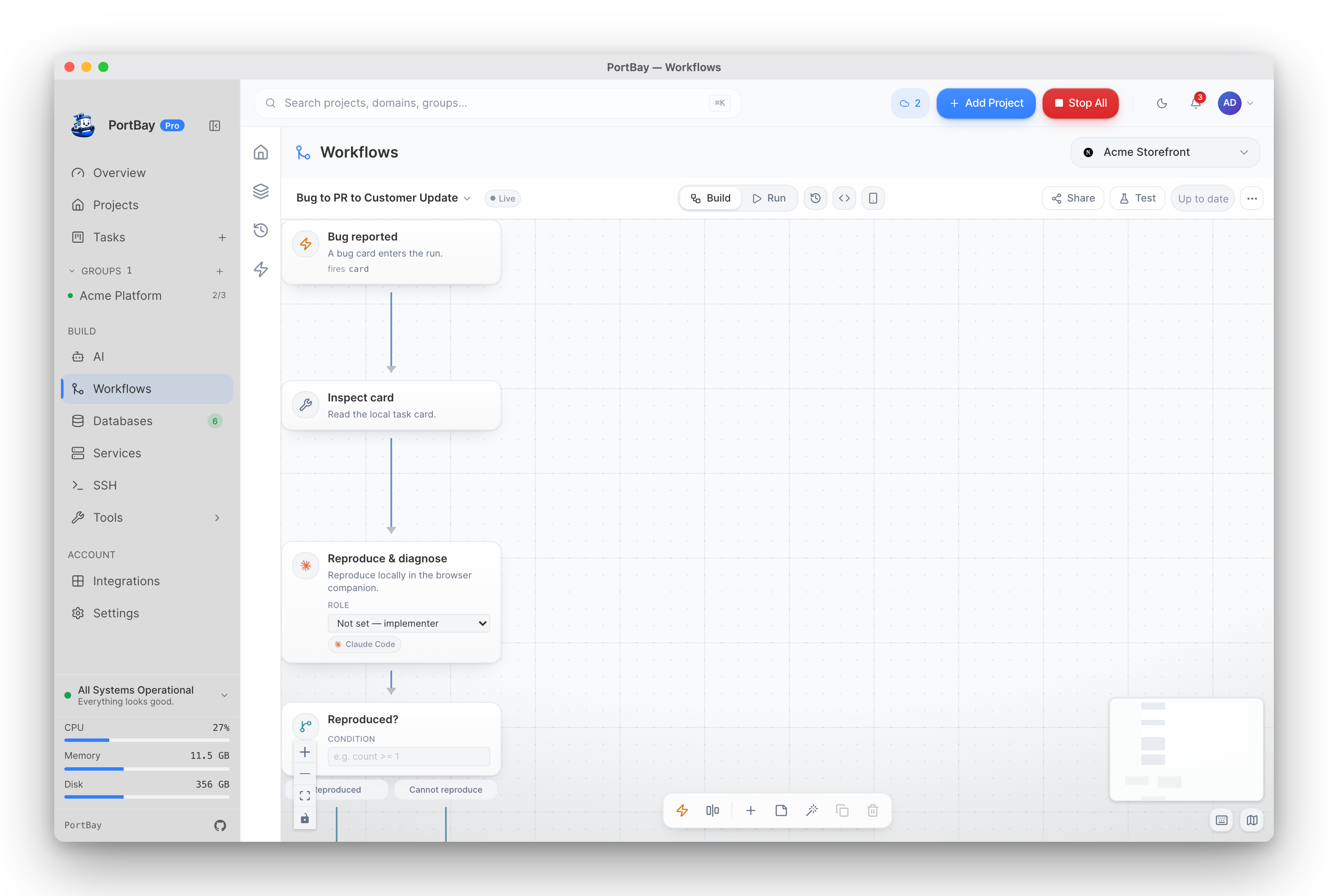
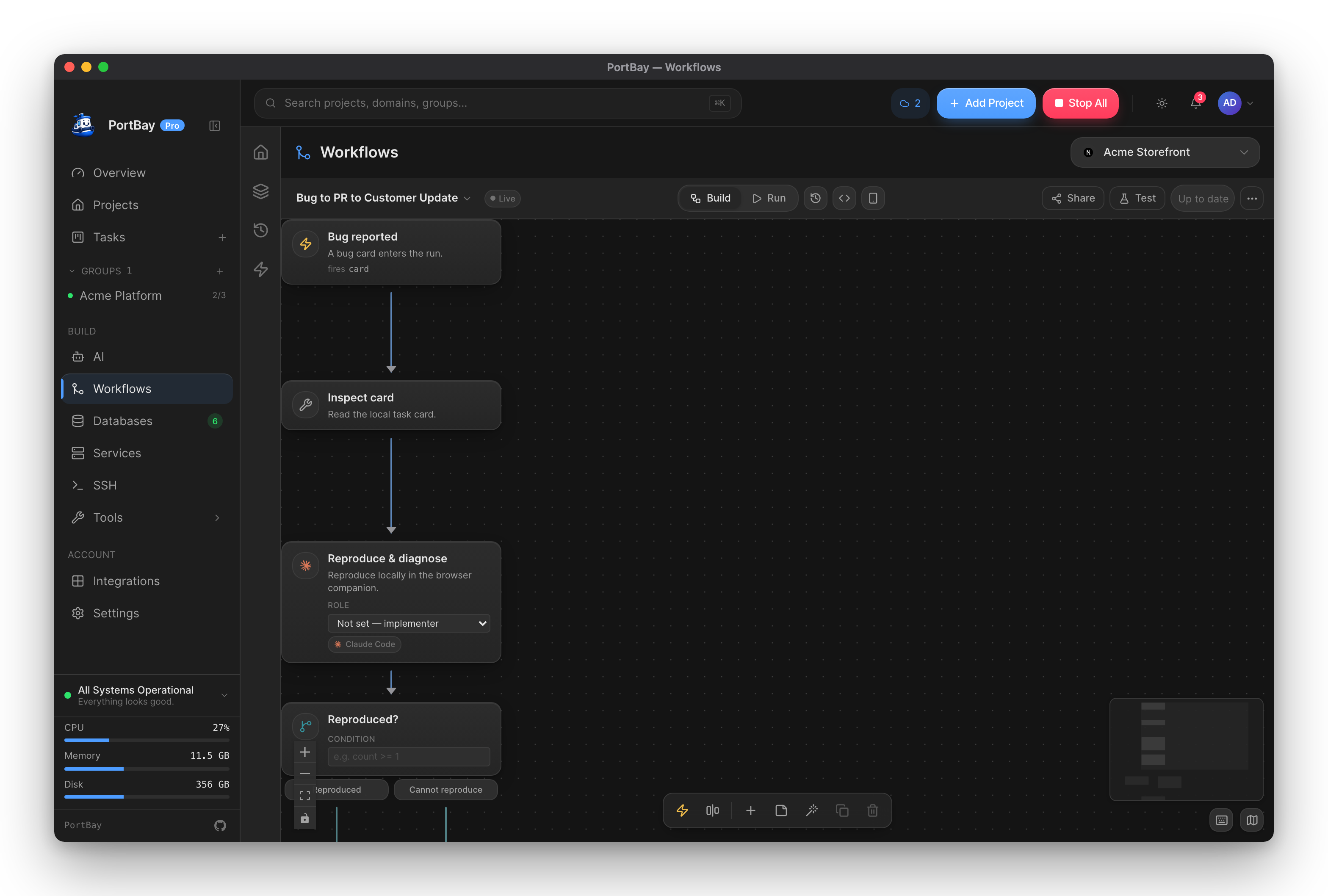
The same builder appears in two places
/workflows is the project-wide entry point. The task board's Recipes view embeds the identical builder scoped to a single card. Anything below works in both; the handful of project-wide-only options are called out where they occur.
Your first workflow
- Workflows → pick a project → New workflow. Start from the template gallery, describe what you want in the AI start modal, or open an empty canvas.
- Add nodes. Drag from the palette, double-click empty canvas to search, or press ⌘K for the command palette.
- Connect them. Drag from a node's output handle to another node's input. Dropping a connection on a node connects it to the first compatible port.
- Configure each node in the inspector on the right.
- Run it with the Run button. Inputs the graph declares are collected in a modal first.
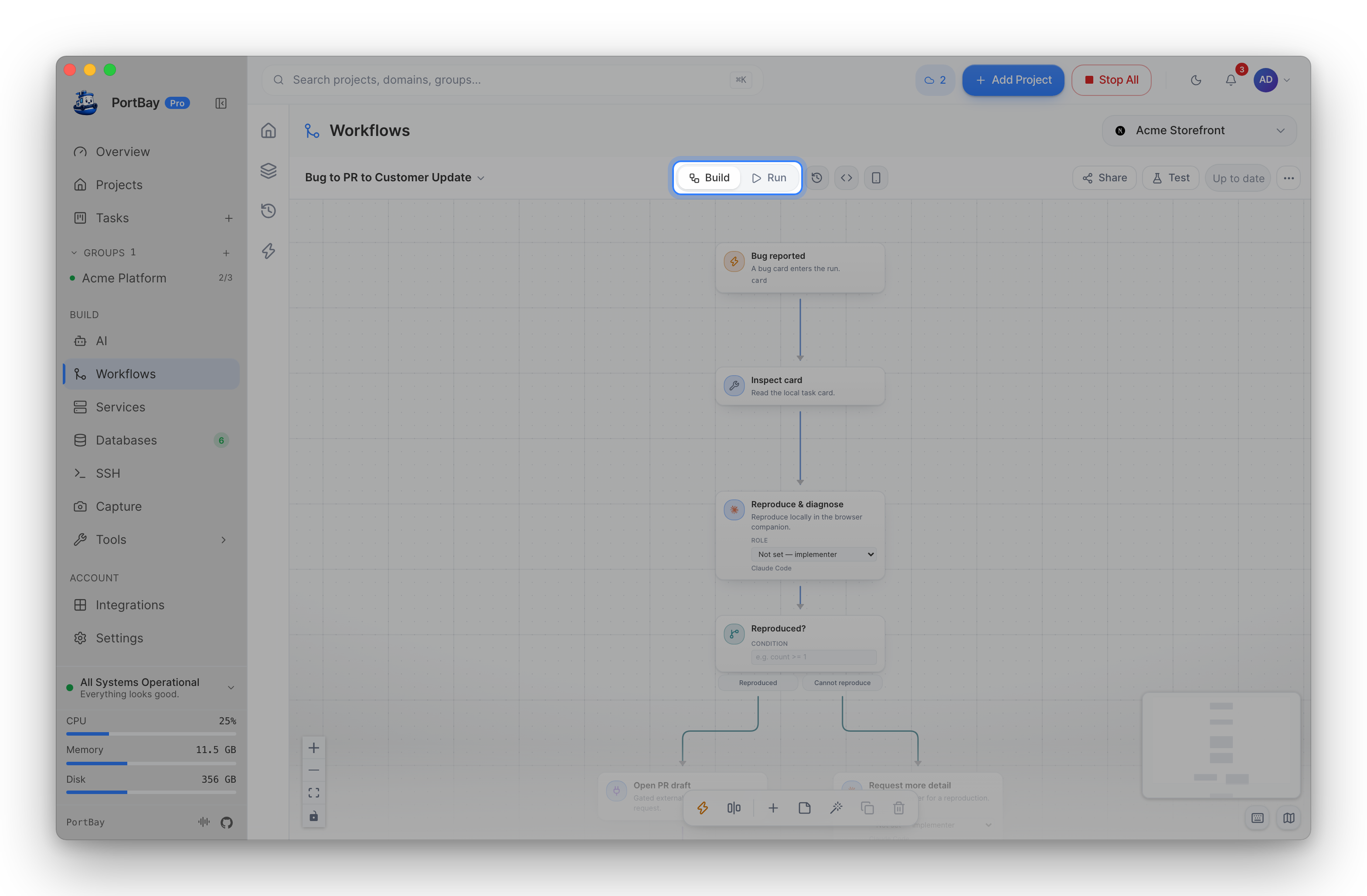
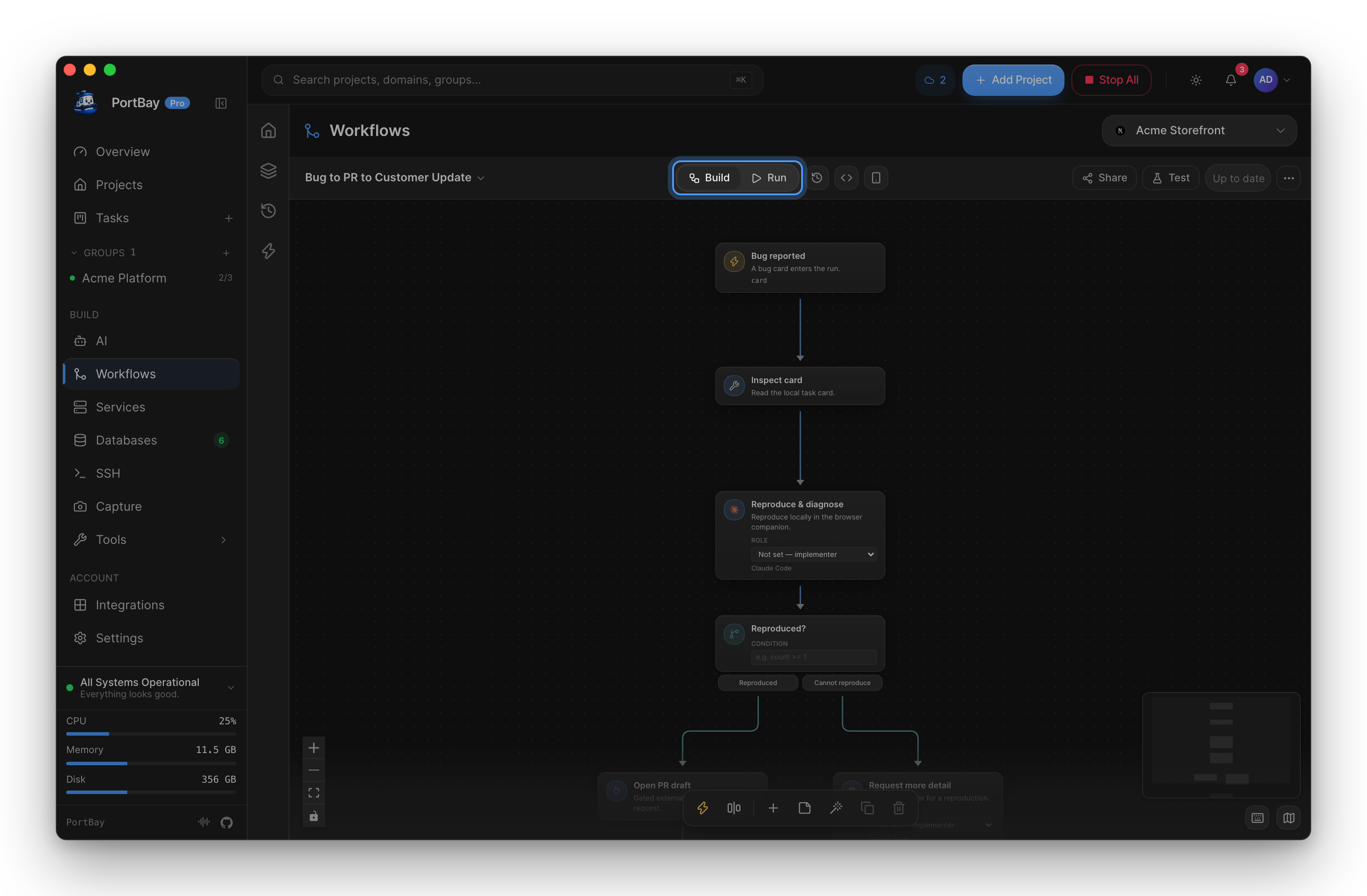
A workflow is saved per project, versioned on every save, and can be restored from Version history at any point.
Nodes
Every node has a capability — what kind of work it does. The capability decides its colour, its configuration form, and which ports it exposes.
| Capability | What it does |
|---|---|
| Trigger | Entry point. What starts this workflow (see Triggers). |
| Agent | Dispatches a coding agent (Claude Code, Codex, Gemini, a local Ollama model…) with a prompt. |
| Extract | Asks a model for a structured value without the dispatch apparatus — the same question as Agent, minus the agent. |
| Race agents | Runs several agents on the same input and takes the first (or best) to finish. |
| Decision | Branches on a condition. |
| Loop | Repeats a branch over a list. |
| Merge | Joins branches back together. |
| Guardrail | Blocks the run unless a condition holds. |
| Review | Pauses for a human to approve before continuing. |
| Browser | Drives a real browser — navigate, fill a form, click, extract, screenshot. |
| Database | Runs a query against one of your PortBay databases. |
| Service | Starts, stops, or checks a bundled service. |
| SSH | Runs a command on a saved remote host. |
| Deploy | Publishes a build. |
| Connector | Calls a connected external account (Slack, Gmail, GitHub, Linear, …). |
| MCP tool | Calls any tool on a connected MCP server. |
| Tool | Calls one of PortBay's own tools. |
| Web search | Searches the web through the local search service. |
| Capture | Takes a screen capture. |
| Image | Generates an image locally. |
| Speech to text | Transcribes audio. |
| Notify | Sends a notification. |
| Secret | Reads a secret into the run without printing it. |
| Card source / Select task / Create task | Read from and write to the task board. |
| Subworkflow | Runs another saved workflow as one step. |
| Output | Declares what the workflow returns. |
Typed ports
Sockets and wires are colour-coded by capability, so an incompatible connection is visible before you make it. A node's output contract, the shape of what it produces, is shown in the inspector, and the reference picker on any config field lets you insert a reference to an upstream node's output rather than typing a path by hand. The picker only offers nodes upstream of the one you are editing.
Node options
Right-click a node, or use the node toolbar:
- Disable — the node is skipped and its branch does not run.
- Bypass — the node is skipped but input passes straight through to its output, so downstream nodes still run.
- Pin — keeps the node's last result while you iterate on the rest.
- Collapse — folds the node to its header.
- Colour — set a per-node accent for visual organisation.
- Cache result — opt-in, off by default. Re-uses the last result instead of re-running the step.
The canvas
| ⌘K | Command palette |
| ⌘Z / ⌘⇧Z | Undo / redo |
| ⌘C / ⌘V / ⌘D | Copy / paste / duplicate |
| ⌫ | Delete selection |
| Arrows / ⇧+arrows | Nudge 1 px / 10 px |
| 1 | Zoom to fit |
| F | Fit to selection |
| Space (hold) | Pan |
| ⇧+drag | Marquee-select |
| ⌥+drag | Drag a duplicate off a node |
| Double-click canvas | Node search |
| Double-click title | Rename the workflow |
| Right-click | Node / canvas context menu |
| ? | The cheat sheet, in the app |
Other canvas affordances:
- Groups — draw a background frame around nodes. A group is a real container: moving it moves its members, and a group can be muted as a unit.
- Sticky notes — annotate the graph for whoever opens it next.
- Tidy — auto-layout. The button toggles between vertical and horizontal.
- Alignment guides appear while dragging.
- Level of detail — nodes simplify as you zoom out, so a large graph stays readable.
- Collapse selection to subworkflow — turn a working cluster into a single reusable node.
Triggers
A workflow can start six ways. Manage them in the Triggers panel.
| Trigger | Fires when |
|---|---|
| Manual | You press Run. Never fires on its own. |
| Card | A task-board card enters a status you choose. |
| Schedule | On a cadence, from the background scheduler. |
| Webhook | An authenticated inbound delivery arrives at the workflow's endpoint. |
| Chat | A message arrives in an opted-in chat target. |
| A message arrives in a connector mailbox you name (Gmail / Outlook). |
Chat and Mail triggers are consent-gated
Saving a Chat trigger is not by itself consent: the channel, workspace and target must already be admitted by the connector's inbound opt-in. For a Mail trigger, choosing the mailbox is the consent.
Each trigger has its own enable switch, so you can leave one configured but off.
Running a workflow
Press Run. If the graph declares inputs, you are asked for them first.
While it runs, the canvas is the progress view: each node shows its live state, and finished nodes show an inline output preview so you can read what a step produced without leaving the canvas.
Run history
The Runs panel lists past runs, newest first. Open one and you get:
- the trace — every step, in order, with timing and status;
- each step's log;
- the graph as it was when that run started, embedded in the run record, so a run from three edits ago still reads correctly against the graph that produced it.
Runs are searchable: which run touched this file, which run hit this error.
When a run notices a change
A run moves on as soon as something it waits for changes: a step's card changes column, an agent finishes, you stop, retry or resolve a step, or an approval is decided. That includes changes made outside the app: an agent reporting over MCP, the portbay CLI, or a card file edited by hand. Each project has one watch on its board files, shared by every run in it and by the open board, whether or not the board is on screen.
Where the system cannot deliver file events (some network and container filesystems), PortBay says so in its log and checks the board's files instead, every 2 seconds after a change and backing off to every 16 seconds while nothing changes. Every live run is also re-checked at least every 30 seconds, so a change is never missed, only noticed later.
Retrying and resolving
A failed step can be retried on its own without re-running the whole graph. A Review node that is waiting shows up as a pending decision you resolve from the run.
How many steps run at once
Each agent step launches an agent, usually in its own worktree, and often a build. A run therefore starts only so many agent steps at a time. Ready steps past that limit show as Queued with the reason, and start in graph order as running steps finish. Steps PortBay runs itself (merges, guardrails, connector reads) do not count.
The default comes from the machine, not a fixed number: the smaller of the CPU count and how many builds the free memory can hold at the build broker's memory floor (PORTBAY_CARGO_QUEUE_MIN_FREE_MB, 2048 MB unless set). It is worked out again on each pass, so a busy machine admits fewer. It never drops below one. A run started with maxConcurrentSteps uses that number instead.
Edit conflicts
Steps on parallel branches each work in their own worktree. When one finishes, PortBay reads which files it changed. If two steps that ran in parallel changed the same file, the run stops with status Conflicted and names the file and both steps. Nothing downstream of that point starts, including a merge or review step, because it would build on two versions of one file. Reconcile the two worktrees by hand, then re-run.
Steps the graph orders one after the other are not flagged for changing the same file: the order is explicit, so it is a hand-off, not a collision. A step that works in the main checkout instead of a worktree of its own is not checked, because its changes cannot be told apart from anyone else's.
App mode
Not everyone who runs a workflow wants to see a canvas. App mode presents a saved workflow as a plain form: its title, its description, its declared inputs as labelled fields, and a Run workflow button. The node graph is hidden.
Switch into it from the workflow's toolbar; the exit control brings the canvas back. This is the mode to hand to a teammate who needs to press the button.
A workflow can also expose itself as a tool — see Driving workflows from an agent.
Code view
The canvas has a text form. Open the Code panel and you get PortBay's workflow DSL, live and editable, docked beside the graph:
- edit the graph and the text refreshes (unless you are typing in it);
- edit the text and, ~400 ms after you stop, valid DSL is merged back into the graph with node positions preserved.
Invalid DSL shows its errors and never clobbers the graph, so you can type freely.
Edit with AI
Edit with AI on the canvas toolbar opens a panel that edits the workflow you have open, in place; describe the change and it rewrites the graph. It never navigates away from the panel it edits in, so you can iterate. The model it runs on is the one you pick in the panel.
To generate a workflow from nothing, use the AI option in the start modal instead.
Sharing and versions
- Version history — every save is a version. Preview an old one and restore it.
- Share sheet — export a workflow to hand to someone else.
- Templates — start from the built-in gallery.
- On Pro, workflow recipes and their triggers sync across your devices.
Driving workflows from an agent
Workflows are exposed over MCP, so Claude Code, Codex, Cursor or any other MCP client can author and run them. The tools worth knowing:
| Tool | Purpose |
|---|---|
portbay_workflow_list | List a project's workflows. |
portbay_workflow_generate | Generate a graph from a description. |
portbay_workflow_author | Author a workflow and self-correct until it validates. |
portbay_workflow_edit | Edit an existing graph. |
portbay_workflow_validate_graph | Check a graph without saving. |
portbay_workflow_dry_run / portbay_workflow_preflight | Check a run before making it. |
portbay_workflow_run / _start / _stop | Run control. |
portbay_workflow_run_list / _get / _step_log | Read run history. |
portbay_workflow_step_retry / _step_resolve | Retry a failed step; resolve a waiting one. |
portbay_workflow_trigger_save / _list / _set_enabled / _delete | Manage triggers. |
portbay_workflow_tool_schema | The workflow's own schema, for calling it as a tool. |
portbay_workflow_author is the one to reach for first: it writes the graph, validates it, and fixes what it got wrong, rather than handing you an invalid recipe.
See also
- Task Board & Agents — the card-scoped side of the same builder
- Parallel AI Agents
- Integrations — connecting the accounts a Connector node calls
- AI Agents (MCP)