
Sandboxed Projects
Sandbox mode runs a project's process inside a macOS sandbox-exec profile that PortBay generates and manages. It is designed for one specific scenario: you have received a project from an external source — a GitHub URL, a share link, an unfamiliar repository — and you want to inspect it running before you commit to running it natively on your machine.
Sandbox mode is available on the free tier for up to 2 sandboxed projects at once (both anonymous and signed-in Free); Pro removes the cap. It is not gated behind Pro.
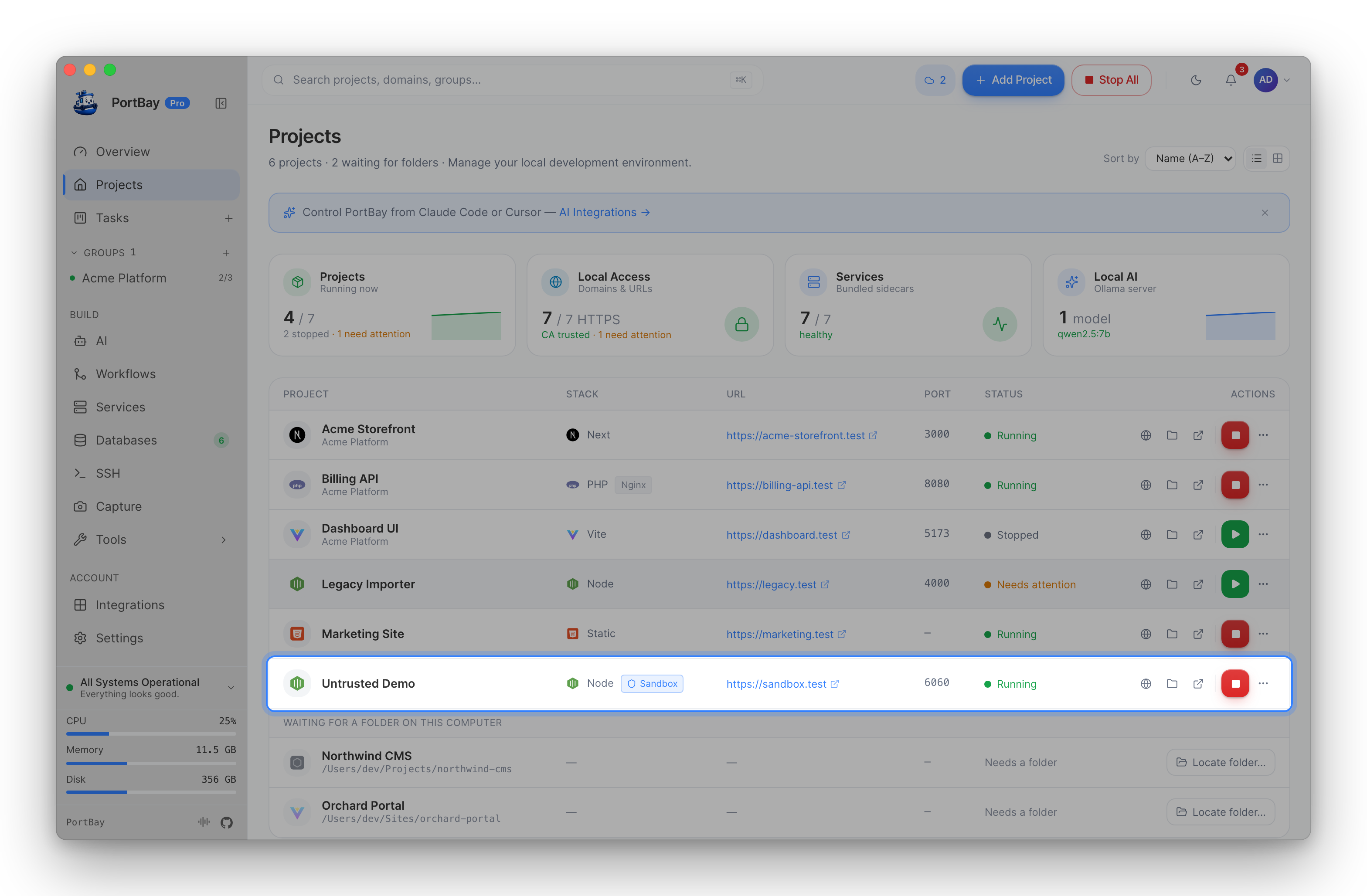
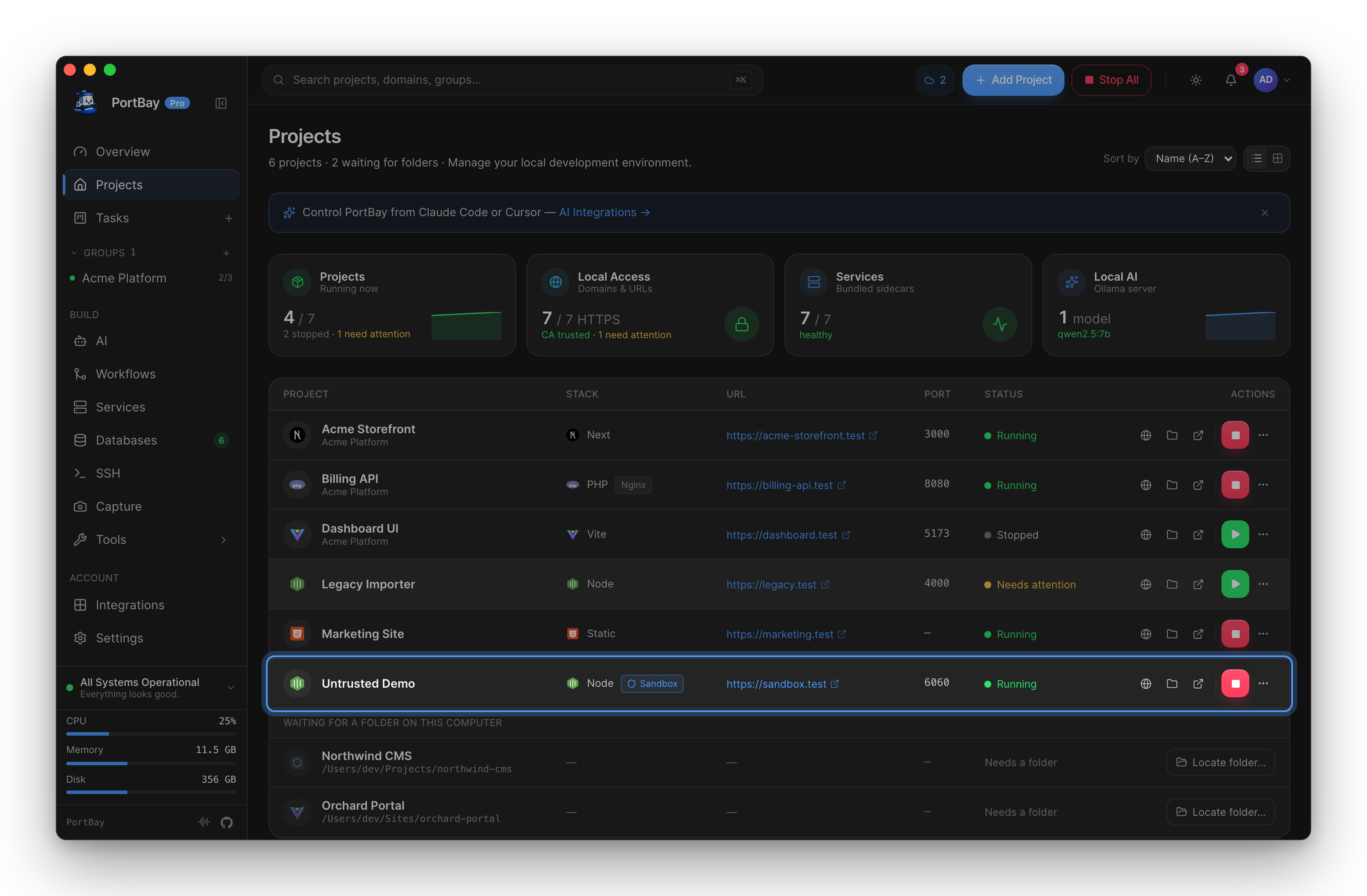
The project list shows a shield badge on the "Untrusted Demo" row when sandbox is active.
Threat model
The sandbox uses macOS's built-in sandbox-exec mechanism. PortBay generates a .sb profile per project and wraps the project's start command with:
sandbox-exec -f <profile> /bin/zsh -lc <start command>What the profile restricts by default:
- File writes are confined to the project directory,
/tmp,/private/tmp, and runtime temp folders (/private/var/folders/…). Writes to anything else are denied. - Network access depends on the policy you choose (see Network policies below).
- Signal delivery is restricted to the sandbox's own process tree.
What the profile allows:
- Unrestricted file reads (runtimes, toolchains, lockfiles, and package caches need to read freely).
- Process creation (
process*) — the start command runs a shell that spawns interpreters, package managers, and dev servers. mach-lookupandsysctl-read— required by most macOS runtimes.
What it does not restrict:
- The project can still read any file on disk, including your home directory. The sandbox write-boundary is the meaningful protection here; read-only access to files is not blocked.
sandbox-execis a macOS-native mechanism; it does not provide kernel-level isolation equivalent to a container or VM. It constrains what the process can do, but a sufficiently motivated actor could attempt to exploit kernel interfaces that(allow mach-lookup)exposes.
The sandbox is a practical friction layer, not a security guarantee equivalent to full isolation. Treat it as "trust but verify" rather than a hard containment boundary.
Quickstart
Clone a repository in sandbox
The fastest path: paste a Git URL and PortBay clones and registers the project with sandbox enabled.
- Open Add Project and find the Clone in Sandbox section.
- Paste an
https://orgit@URL. - Select a network policy.
- Optionally click Folder… to choose a parent directory for the clone (defaults to a
sandbox/importsfolder inside the PortBay data directory). - Click Clone & run.
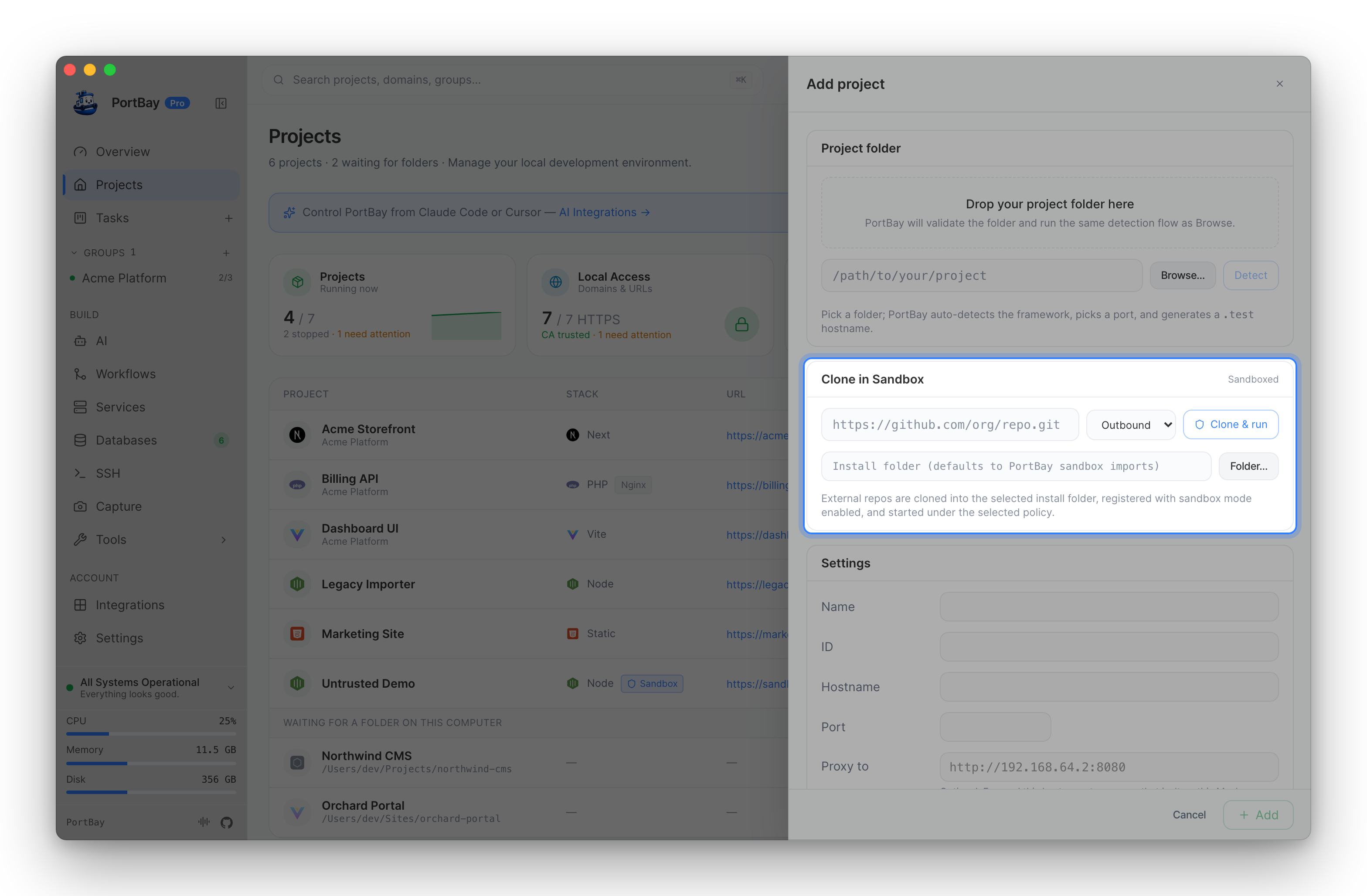
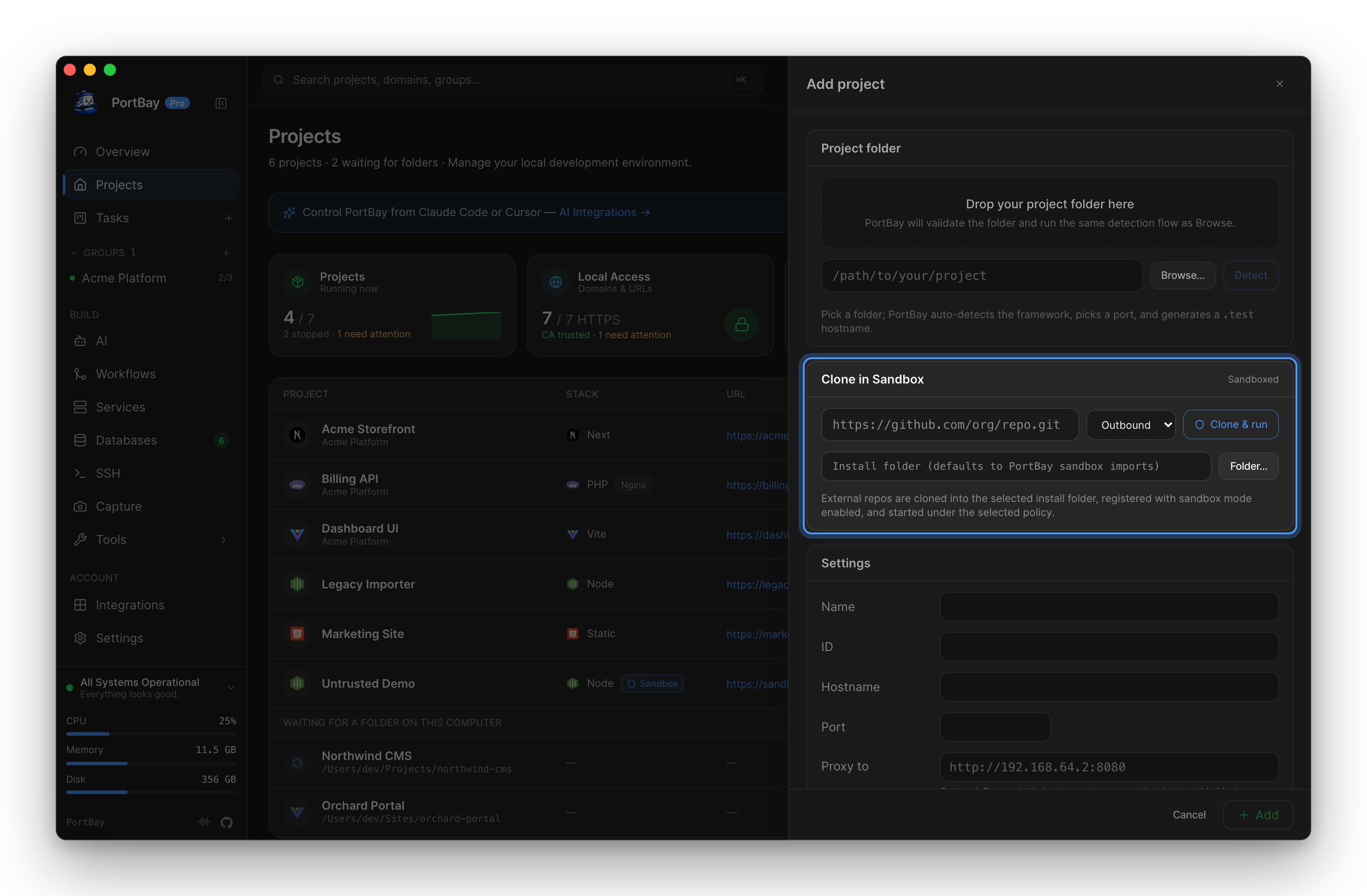
Ephemeral mode is on by default. Change it from the project's detail panel.
The clone uses git clone --depth 1 --filter=blob:none with GIT_TERMINAL_PROMPT=0 and GIT_ASKPASS=/bin/false so that credential prompts never block the process. protocol.file.allow=never blocks local file-path clone attempts.
Accepted URL formats:
https://github.com/owner/repo.gitgit@github.com:owner/repo.git
Rejected inputs: file:// URLs, bare filesystem paths, control characters in URLs, malformed SSH URLs without a host-path separator.
Blocked parent directories:
The import parent directory must not be a system root. PortBay rejects these paths:
/, /Applications, /bin, /dev, /etc, /Library, /private, /private/etc, /private/var, /sbin, /System, /usr, /var, /Volumes
Enable sandbox on an existing project
- Open the project's detail panel.
- Under Sandbox, toggle Run in Sandbox on.
- Select a network policy.
- Save. PortBay writes the
.sbprofile and reconciles process-compose.
The next start wraps the project's command in sandbox-exec.
Network policies
The network field on a SandboxConfig controls what outbound and inbound network operations the process can perform. Choose the least-permissive policy that lets the project run:
| Policy | Wire value | What it allows |
|---|---|---|
| Blocked | blocked | No network at all. |
| Loopback only | loopback_only | Bind and connect to localhost only. Suitable for projects that serve locally and make no external calls. |
| Outbound | outbound | All outbound connections (for package manager downloads, API calls) plus local bind on localhost. |
| Full | full | All network operations — equivalent to no network restriction. |
The generated .sb profile includes the appropriate (allow network*) stanza for the chosen policy. Choosing blocked omits all network rules (the (deny default) at the top of every profile covers it).
Ephemeral mode
When ephemeral: true, PortBay resets the project's ephemeral state directory before each sandboxed start:
~/Library/Application Support/PortBay/sandbox/<project-id>/ephemeral/This directory is cleared and recreated on every start. Use it when you want a clean slate on each run (for example, when evaluating an installer script or checking that a project bootstraps cleanly from scratch). Ephemeral mode does not affect the project's own directory — only the PortBay-managed ephemeral folder.
Inspecting and promoting a project
After running in sandbox and reviewing logs, you can promote the project to an unrestricted local run:
- In the project detail panel, under Sandbox, click Promote to local.
- PortBay disables the sandbox flag and removes the legacy
portbay:sandboxtag (if present from an older import). The.sbprofile is left on disk but no longer used. - Start the project normally.
Promotion is irreversible through the UI — to re-enable sandbox, toggle it back on in the detail panel.
Viewing violations
When the sandbox denies an operation, macOS logs a deny(…) line. PortBay surfaces these from the project's process log:
- Open the project detail panel.
- Click View sandbox violations (visible when sandbox is enabled).
A violation looks like:
sandbox-exec: deny(1) file-write-create /Users/you/.ssh/id_ed25519PortBay filters the process log for lines containing deny( or sandbox … deny / operation not permitted to build the violation list.
If violations are unexpected (for example, a legitimate build tool writing outside the project tree), adjust the network policy or consider promoting to local after confirming the writes are benign.
Reference
SandboxConfig fields
| Field | Type | Description |
|---|---|---|
enabled | boolean | Whether sandbox-exec wraps the start command. |
network | SandboxNetworkPolicy | Network access policy (see table above). |
ephemeral | boolean | Clear the ephemeral state directory before each sandboxed start. |
SandboxNetworkPolicy values
| Value | Description |
|---|---|
loopback_only | Bind and connect to localhost only. |
outbound | All outbound plus local bind on localhost. |
full | All network operations. |
blocked | No network. |
Profile location
PortBay writes one .sb profile per project to:
~/Library/Application Support/PortBay/sandbox/<project-id>.sbThe profile is regenerated on each reconcile when sandbox is enabled.
Environment variables
When a project runs under sandbox, the process-compose entry receives two environment markers (visible in logs and accessible to the project):
PORTBAY_SANDBOX=1
PORTBAY_SANDBOX_NETWORK=<policy-wire-value>Tier limits
Sandbox mode is capped, not gated. Both the anonymous and signed-in Free tiers can keep Sandboxed Run enabled on up to SANDBOX_COMMUNITY_CAP (2) projects at once; Pro lifts the cap entirely. The limit is enforced by the max_sandbox_projects() entitlement in three places:
add_project: checked wheninput.sandbox.enabledis true.update_project: checked when patchingsandbox.enabledto true.clone_git_project_sandboxed: checked at entry.
The GUI enforces the cap proactively before opening the relevant flow; the Rust commands are the backstop for the CLI and any non-gated path.