
First Run
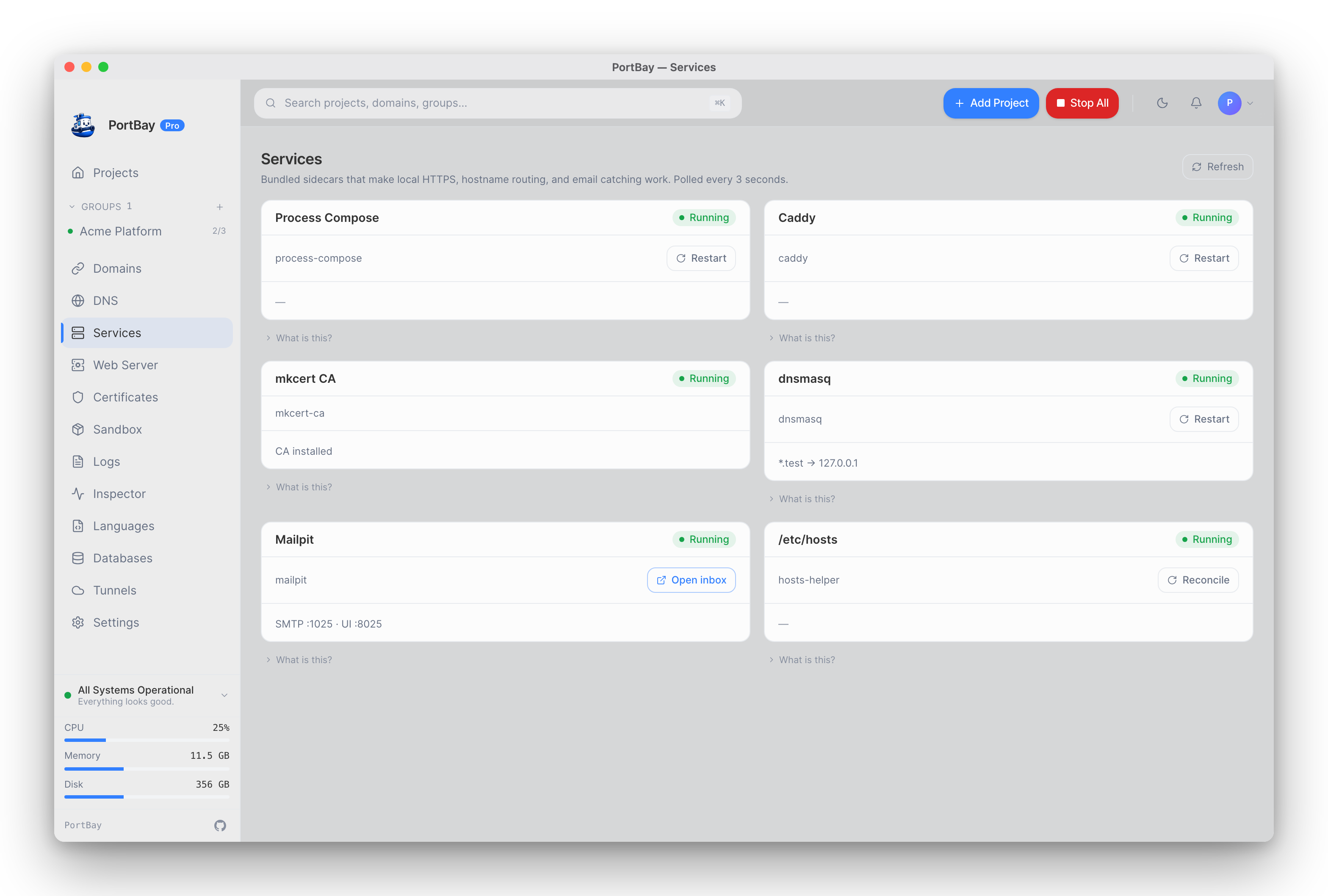
The first run should establish three things: the registry location, the sidecar health state, and whether PortBay can safely route hostnames on this machine.
System Authorization Prompts
When you add your first project, macOS will present two authorization dialogs in sequence. PortBay shows an in-app explainer screen before this happens so you know what to expect.
Prompt 1 — Keychain CA trust
What it is: macOS asking you to allow a new root certificate into your login Keychain.
Why it appears: PortBay generates its own root certificate authority (CA) and registers it as trusted — this is not the same as running the stock mkcert -install. mkcert -install on its own produces an unconstrained root: one that, if trusted, could mint a valid-looking certificate for any hostname on the internet, not just your local projects. PortBay instead generates the CA itself with an X.509 nameConstraints extension (RFC 5280 §4.2.1.10, marked critical) that scopes it to exactly your configured domain suffix (e.g. .test) plus the fixed loopback names (localhost, 127.0.0.1, ::1) — a validator that understands nameConstraints will refuse any certificate this CA signs for a name outside that list. Only then does PortBay register the CA as trusted: on macOS via SecTrustSettings (adding it to your login Keychain), never by shelling out to mkcert -install. After this, every .test certificate PortBay issues is trusted by Safari, Chrome, and Firefox without a browser warning.
What it touches:
- Creates a scoped
rootCA.pemunder~/Library/Application Support/mkcert/(the same path mkcert's own-CAROOTwould report, so mkcert's cert-issuance commands keep working against it). - Adds that certificate to your macOS login Keychain with the "Always Trust" policy for SSL, via
SecTrustSettings— nosudoneeded.
What it does not do: This CA is not a public internet CA. Its nameConstraints mean it cannot sign a trusted certificate for any domain outside your configured local suffix and the loopback names, even if something on your machine tried to make it, and it has no authority outside your machine.
If you decline: PortBay continues to work, but browsers will show a certificate warning for every .test project that has HTTPS enabled. To install the CA later, go to Settings → Domains & HTTPS and click Install CA next to the "Trust local CA" row — this fires the same Keychain prompt on demand. There is no CLI or MCP equivalent: portbay hosts reconcile only manages /etc/hosts and resolver entries, not the certificate trust store, and installing the CA is deliberately interactive (it's a privileged, user-facing Keychain action) rather than something an agent or script can trigger.
Prompt 2 — Admin password (privileged helper install)
What it is: A standard macOS system dialog asking for your administrator password.
Why it appears: PortBay installs a small privileged helper binary at /usr/local/bin/portbay-hosts-helper and registers it as a macOS LaunchDaemon (com.portbay-app.portbay.hosts-helper). The helper runs as root because editing /etc/hosts and writing resolver files under /etc/resolver/ require elevated privilege.
The helper's complete scope:
| Can do | Cannot do |
|---|---|
Write project hostname entries into /etc/hosts — strictly limited to hostnames ending in your configured .test suffix | Modify any hostname outside your configured suffix. The allowed suffix is baked into the daemon at install time and a request can never override it — even another local process running as you can't make the daemon trust a different suffix |
Write /etc/resolver/<suffix> so macOS routes *.test queries to PortBay's local dnsmasq resolver | Install a resolver, or write a hosts entry, for a public TLD such as .com or .net — the daemon rejects these itself, independent of what the requesting process claims |
Point a hostname at 127.0.0.1 (or another loopback address) | Point any hostname at a non-loopback IP — every write is constrained to 127.0.0.0/8 |
| Remove the resolver file or clear PortBay-managed hosts entries when you uninstall or change your domain suffix | Accept connections from any other local user — the Unix socket at /var/run/portbay-hosts-helper.sock is locked to your user ID at the OS level, enforced both by socket permissions and by a kernel peer-credential check |
| Proxy network traffic, read project files, or access any other part of the filesystem |
The helper is not persistent beyond the operations above. It listens on the Unix socket, applies a request, and returns. The LaunchDaemon keeps it alive so PortBay can call it without a new authorization prompt each time (except when you change your domain suffix, which re-pins the daemon and needs one more admin prompt).
If you decline: Project hostnames will not resolve in your browser (the hosts file is not updated), and *.test wildcard DNS will not work. PortBay itself stays functional — the project list, sidecar management, and the scaffolder all work. You can install the helper later by going to DNS in the sidebar and clicking "Set up local DNS." As a manual fallback, sudo portbay hosts reconcile from a terminal writes the hosts entries without the daemon.
Expected State
| Area | Expected result |
|---|---|
| Registry | Created under the platform app data directory when the first project is saved. |
| Runtime file | Written under the platform app data directory once Process Compose and Caddy have live ports. |
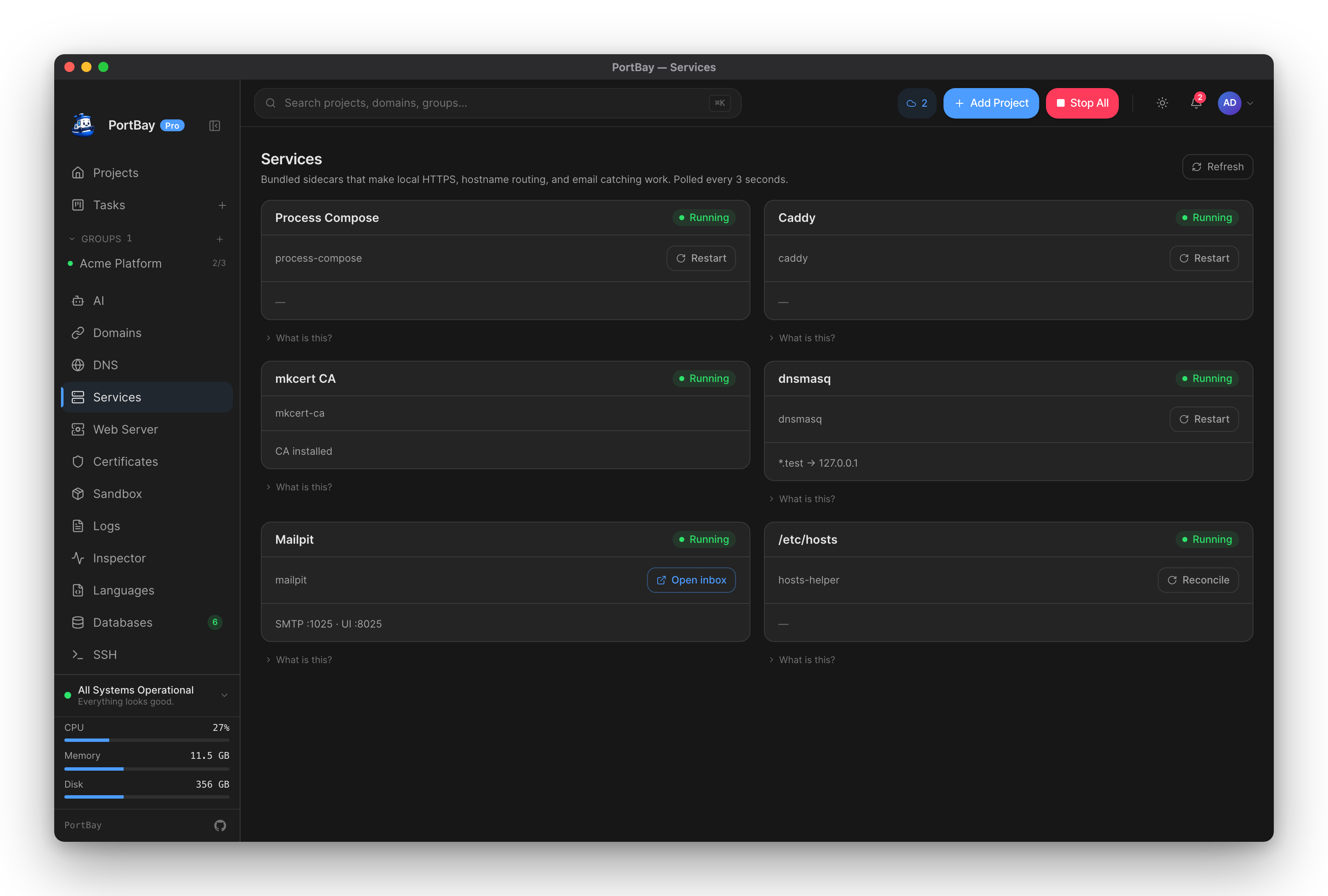
| Sidecars | Process Compose and Caddy should report reachable once started. |
| Hostnames | Project hostnames are routed through Caddy. Exact hostnames resolve via the privileged /etc/hosts helper; wildcard *.test resolution is handled by dnsmasq. macOS ships PortBay's bundled dnsmasq sidecar; Linux uses the system dnsmasq package. |
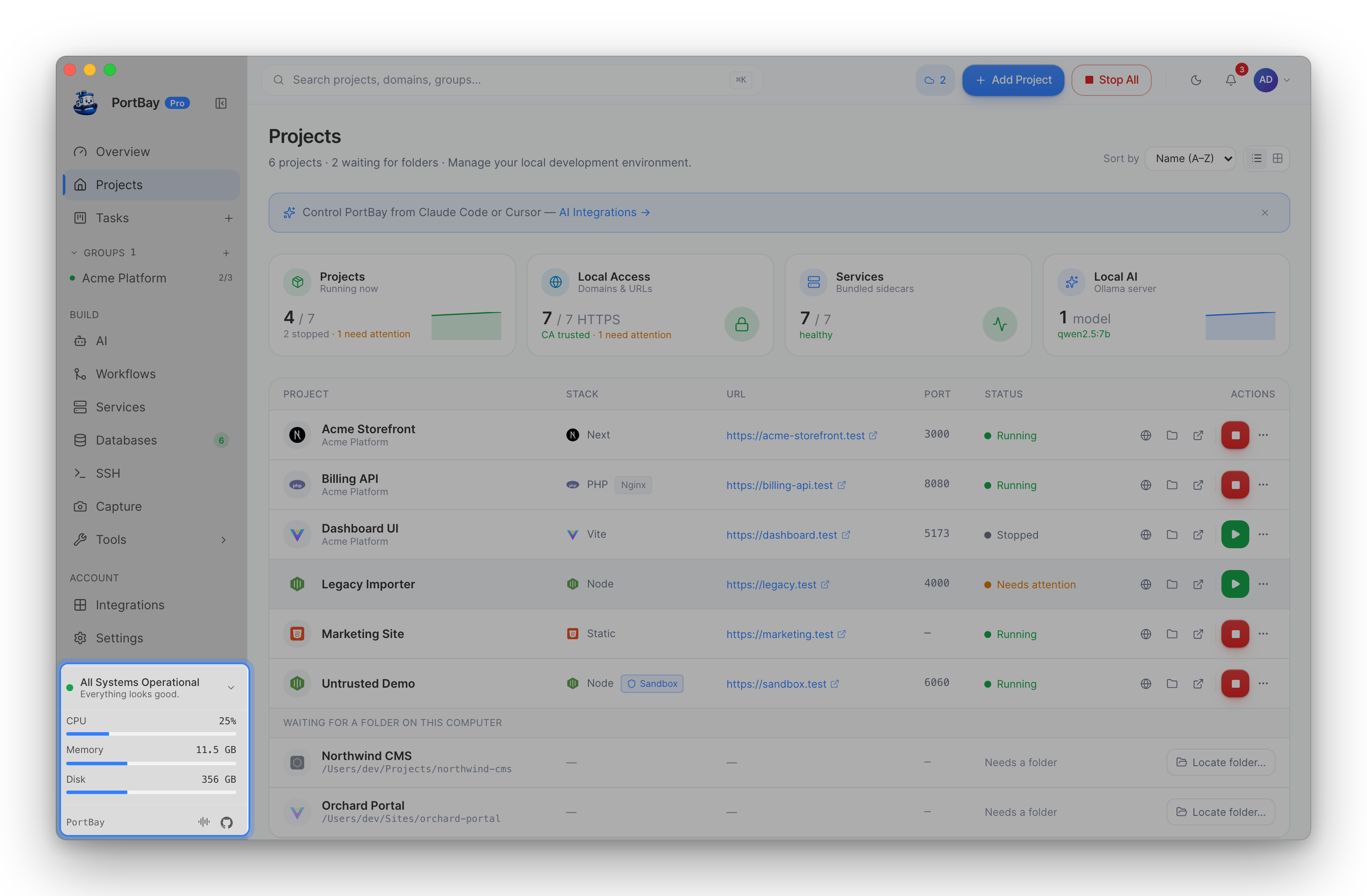
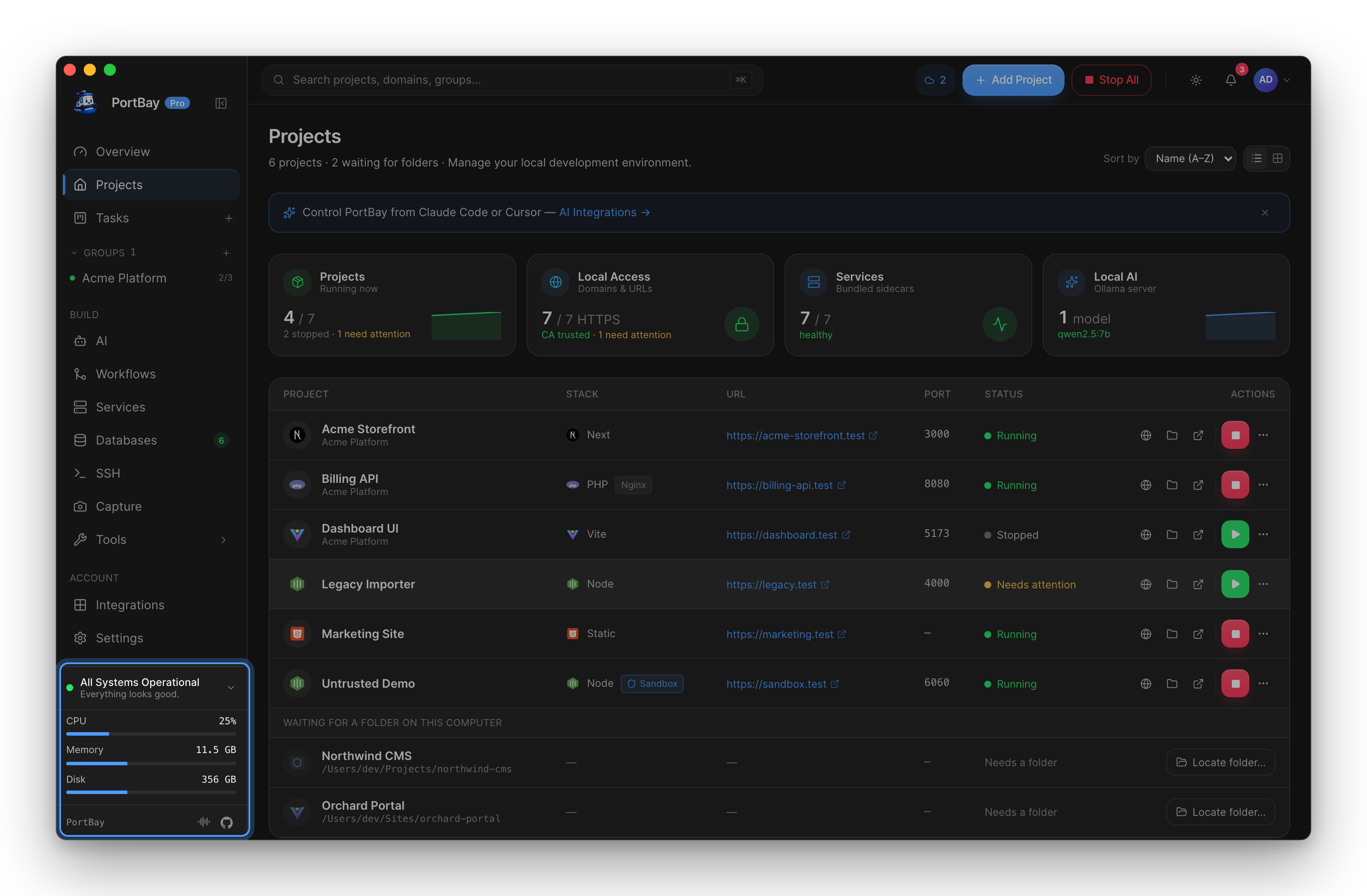
The footer at the bottom of the sidebar is the quick check. It reads All Systems Operational when every sidecar is running and no project has crashed or hit a port conflict. Otherwise it reads Needs Attention, Setup Needed, Daemon Down or Idle.
What To Check
- Launch PortBay (the installed app, or
pnpm tauri devfrom a source checkout). - Open Settings and confirm the UI theme, density, and sidecar status controls render.
- Open the Services view and confirm sidecar rows are visible.
- Open Projects and confirm the empty state renders without errors.
Data Directory
PortBay stores user data in the platform application support directory. On macOS, the active paths are:
| Path | Purpose |
|---|---|
~/Library/Application Support/PortBay/registry.json | Project registry |
~/Library/Application Support/PortBay/runtime.json | Live sidecar port assignments |
~/Library/Application Support/PortBay/certs/<project-id>/ | mkcert-issued project certificates |
~/Library/Application Support/PortBay/logs/<project-id>.log | Project logs |
~/Library/Application Support/PortBay/process-compose.yaml | Generated Process Compose config |
~/Library/Application Support/PortBay/caddy/autosave.json | Caddy-managed autosave |
On Linux, the equivalent paths live under ~/.local/share/PortBay/ with the same filenames.