
SSH Workspace
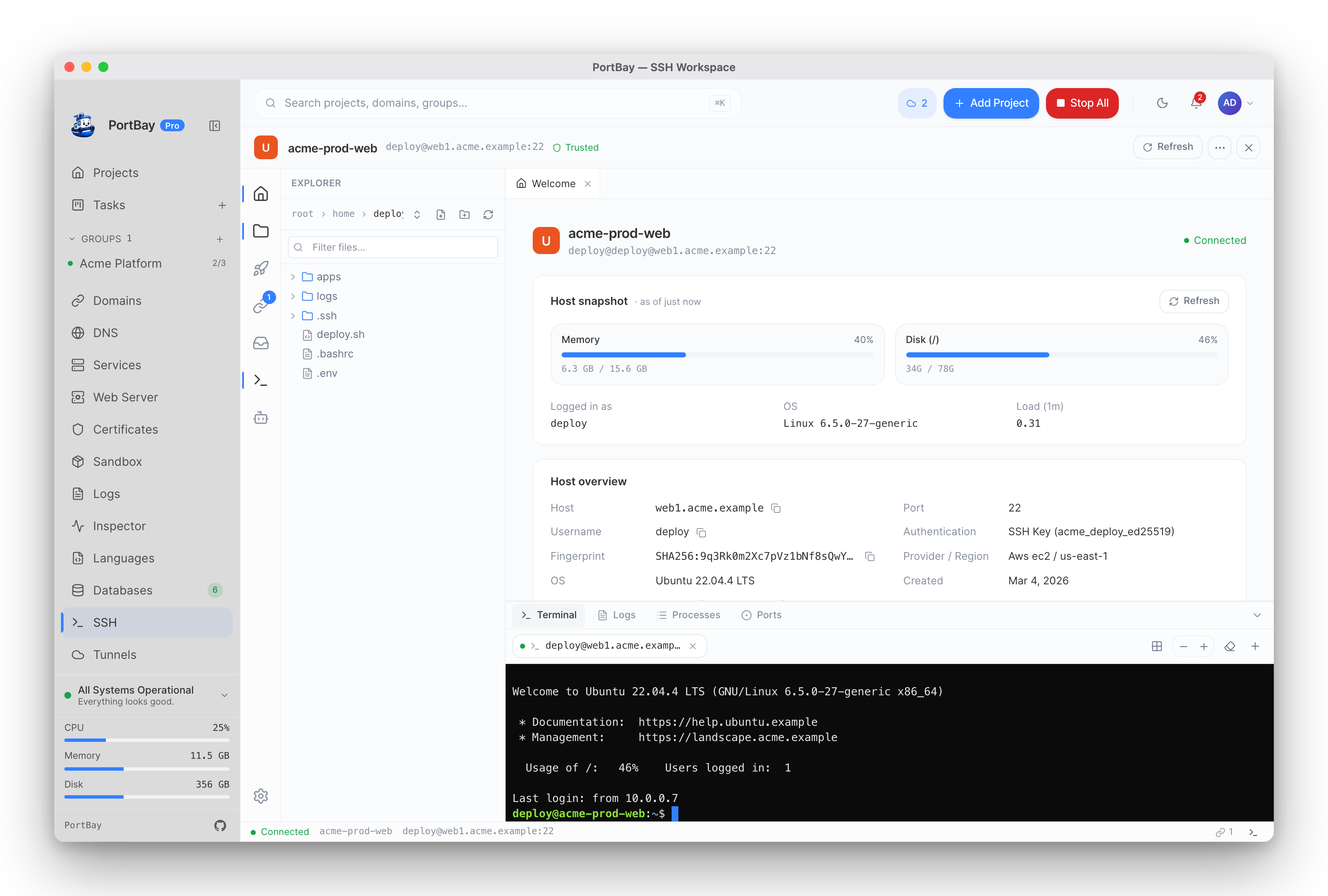
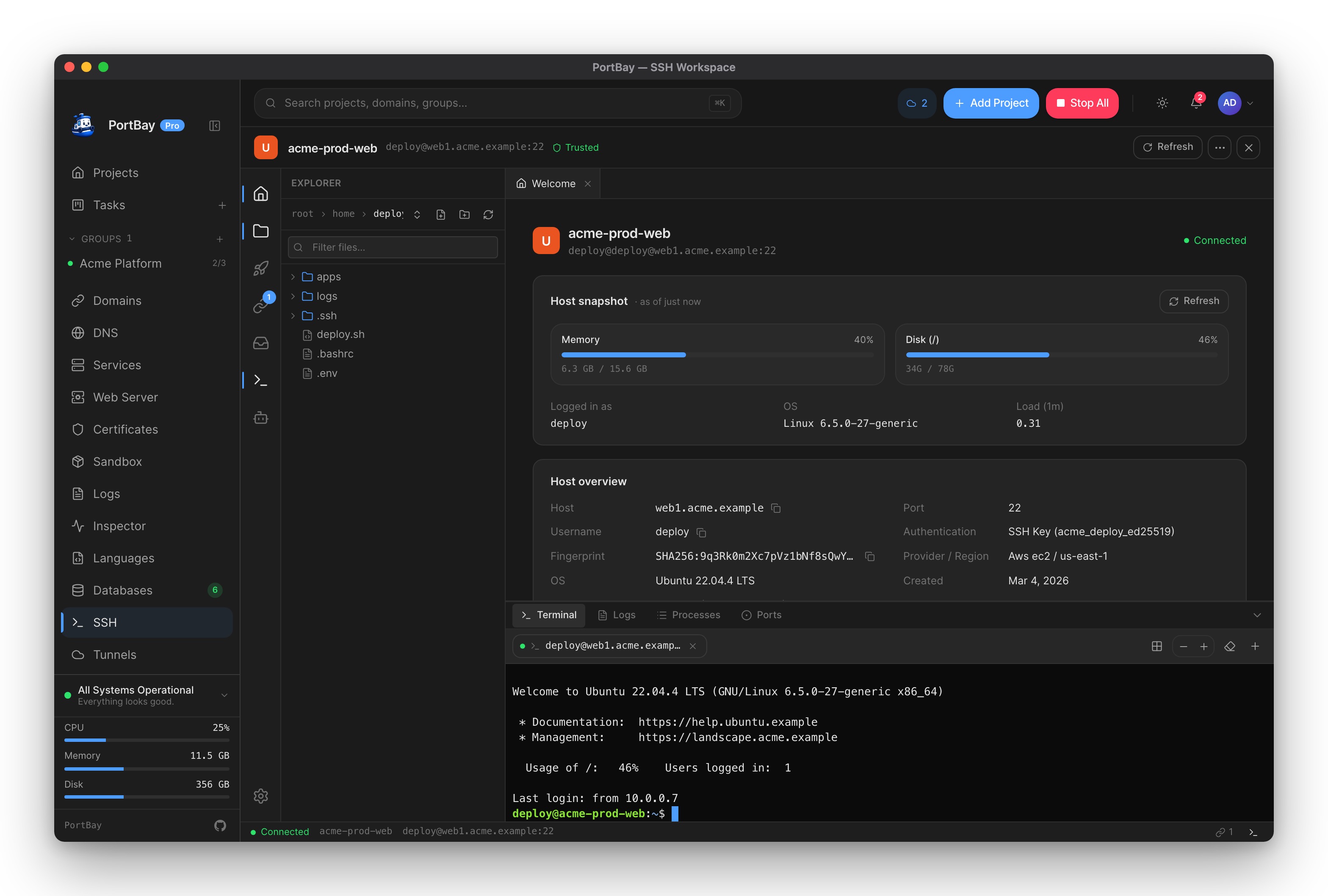
The projects you run locally have to ship somewhere. PortBay gives you a real SSH client for the servers on the other end, so you don't keep a second app open just to reach them. Save a connection once and open a workspace for it:
- an interactive terminal — a real PTY on the host, not a command builder;
- an SFTP file browser with an inline code editor: open a remote file, edit it, and save with ⌘S straight back over SFTP;
- port-forward tunnels you start and stop with a click;
- snapshot, processes, and listening-ports panels read straight off the host;
- a saved deploy step list and a one-look health probe with latency and host-key trust.
Tunnels are one part of that workspace. An SSH tunnel pulls a remote service onto your machine — the inverse of Cloudflare Tunnels, which share a local project outward to the public internet. Reach for a tunnel when a service should stay private on a remote network but you need to inspect it locally:
| Workflow | Example |
|---|---|
| Vibe coder / indie VPS | Forward Postgres or MySQL from a Hetzner, DigitalOcean, cPanel, or shared-hosting SSH account to 127.0.0.1. |
| Senior / DevOps developer | Save a bastion profile for staging or production and keep the exact equivalent ssh command visible for auditability. |
| LLM / ML researcher | Re-point a saved Jupyter, TensorBoard, Ray, MLflow, or vLLM tunnel to the current Slurm compute node while keeping the login or bastion leg. |
| Cloud VM user | Use the same SSH config entries and keys you already use for AWS EC2, Google Compute Engine, Azure VMs, OCI, Fly, Render, or other Linux hosts. |
| Enterprise access user | Use the Host alias generated by Teleport, Boundary, Cloudflare Access, AWS SSM Session Manager, VPN/ZTNA tooling, or your internal platform team. |
Provider Support
PortBay is provider-agnostic. The key-auth path uses system OpenSSH, so it inherits the user's existing ~/.ssh/config, IdentityFile, Host aliases, ProxyJump, ProxyCommand, agent, cloud-managed keys, certificates, and known-host behavior.
That means there is no separate PortBay-specific provider adapter for AWS, GCP, Azure, DigitalOcean, Hetzner, cPanel, academic clusters, or private Linux servers. If ssh host-alias works in Terminal, PortBay can use the same host alias and layer tunnel management on top.
| Provider / environment | PortBay strategy |
|---|---|
| AWS EC2 | Use the same Linux SSH username, key pair, EC2 Instance Connect-generated key, or Host alias you already use with OpenSSH. |
| Google Compute Engine | Use gcloud compute ssh --dry-run output or a Host alias created from it; PortBay then uses that alias like any other SSH target. |
| Azure Linux VMs | Use the VM username, public IP/DNS, key, and port from Azure's SSH instructions or a saved Host alias. |
| DigitalOcean / Hetzner / Linode / Vultr / generic VPS | Use the server IP or DNS name, Linux username, key path, and optional nonstandard SSH port. |
| cPanel / Plesk / shared hosting | Use the panel-created/imported SSH key and account username; remote paths are often under the account home directory, public_html, httpdocs, or the provider's chrooted site root. |
| Academic / enterprise HPC | Save the login node or bastion as the SSH host / ProxyJump; re-point the remote host to the current compute node when a new job is allocated. |
| Teleport | Run tsh config, append or reference the generated OpenSSH config, then use the resulting Host alias in PortBay. |
| HashiCorp Boundary | Configure the documented OpenSSH ProxyCommand host entry that invokes boundary connect, then use that target alias. |
| Cloudflare Access / Zero Trust | Use WARP/private-network hostnames directly, Access for Infrastructure SSH clients, or the documented cloudflared access ssh ProxyCommand host entry. |
| AWS SSM Session Manager SSH | Put AWS's aws ssm start-session ProxyCommand entry in ~/.ssh/config, then use the EC2 instance ID / host alias as PortBay's SSH host. |
| Tailscale / ZeroTier / VPN / private DNS | Use the MagicDNS/private hostname or normal SSH Host alias once the client network is connected. |
Cloud CLIs still matter. Some providers mint short-lived keys or generate provider-specific SSH config. Let those CLIs write or print the OpenSSH configuration, then use the resulting Host alias in PortBay.
Host Alias Workflow
Host aliases are the production integration point for complex SSH environments. They let PortBay avoid storing provider-specific scripts, tokens, or shell fragments while still supporting the full OpenSSH surface.
Use this pattern for:
- Teleport, Boundary, Cloudflare Access, AWS SSM, corporate bastions, and any provider that requires
ProxyCommand. - Certificate-based SSH, short-lived identities, hardware-backed keys, and agent-driven auth.
- Remote-SSH editors,
rsync,scp, and Git deploys that must use the same SSH route as the tunnel.
In PortBay, set SSH host to the alias, for example teleport-prod or i-0123456789abcdef0. Leave User blank when the alias already defines User; otherwise fill it normally. Password auth is the exception: it uses the internal password path and therefore needs an explicit SSH user.
PortBay also generates a small Host portbay-* block for direct key, port, and ProxyJump profiles. Add that block to ~/.ssh/config when VS Code, Cursor, rsync, or scp need the same non-default transport settings.
Forward Types
| Type | Command shape | Use it for |
|---|---|---|
| Local forward | ssh -N -L 127.0.0.1:15432:db.internal:5432 user@bastion | Remote databases, admin dashboards, private APIs. Included in the community tier. |
| Reverse forward | ssh -N -R 8080:127.0.0.1:3000 user@vps | Webhook testing through a VPS or remote callback endpoint. Pro profile feature. |
| SOCKS proxy | ssh -N -D 127.0.0.1:1080 user@host | Browser or tool traffic through a remote network. Pro profile feature. |
Single-hop and one ProxyJump bastion are included for the core remote database workflow. Comma-separated multi-hop chains, keep-alive, and auto-reconnect are Pro profile features.
Security Model
PortBay stores saved tunnel profile coordinates in the registry: hostnames, ports, usernames, forward type, jump host, and optional key path. It does not store private key material in the registry.
Password auth is stored through the OS keychain under PortBay SSH and is used only for the pure-Rust password path. Key auth stays on system OpenSSH so your agent, cloud keys, hardware-backed keys, and ~/.ssh/config keep working.
Host-key handling follows OpenSSH trust-on-first-use for system SSH (StrictHostKeyChecking=accept-new) and rejects changed keys. Do not work around host-key failures with StrictHostKeyChecking=no; fix the stale known_hosts entry only after verifying the server really changed.
Remote DB Handoff
After a local forward is live, click Open DB client. PortBay registers a database instance pointed at 127.0.0.1:<local_port> and opens the existing DB client flow. The database commands do not need to know whether the port belongs to a local daemon or an SSH tunnel.
Remote Files, Uploads, and Git Deploys
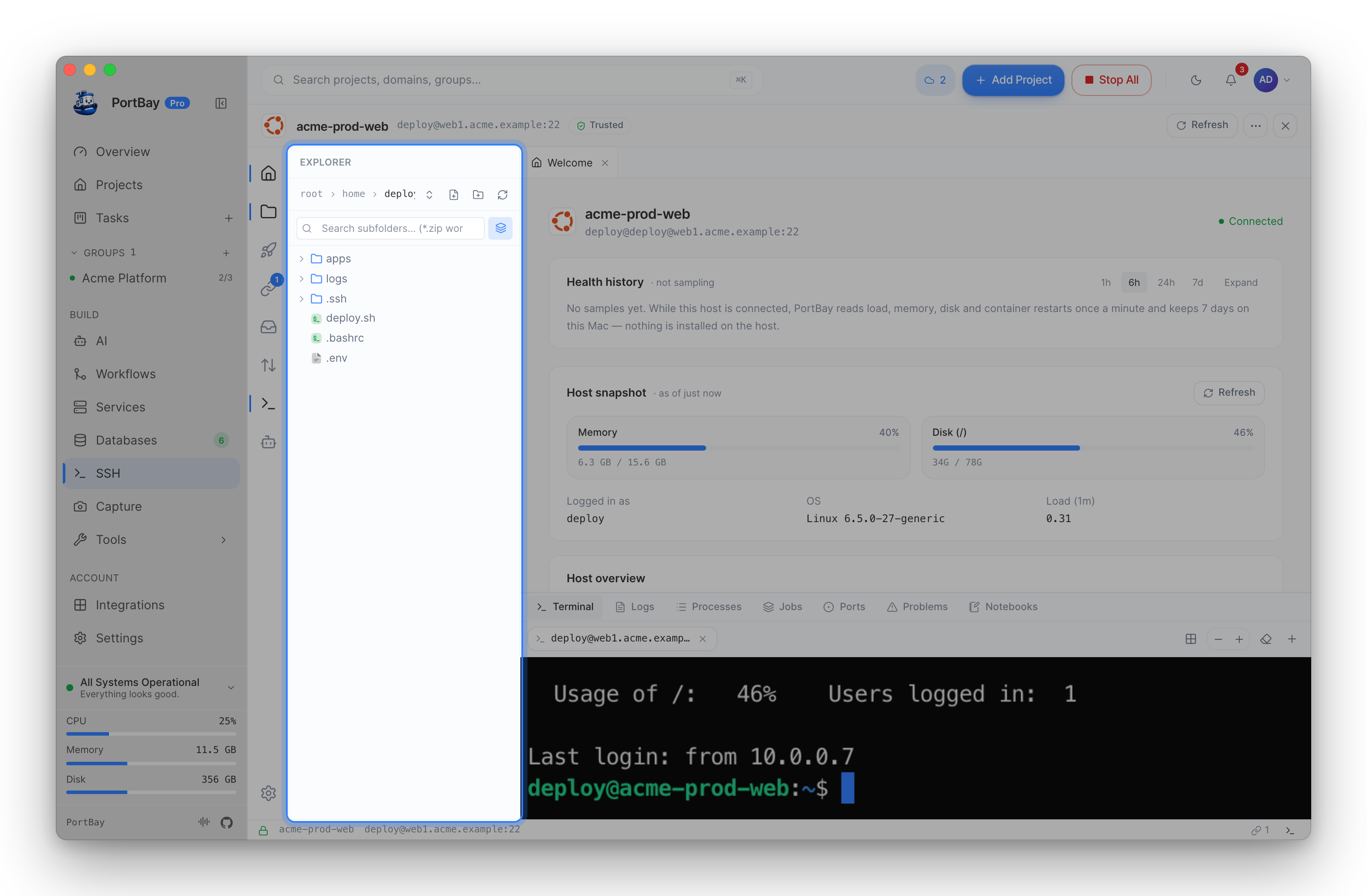
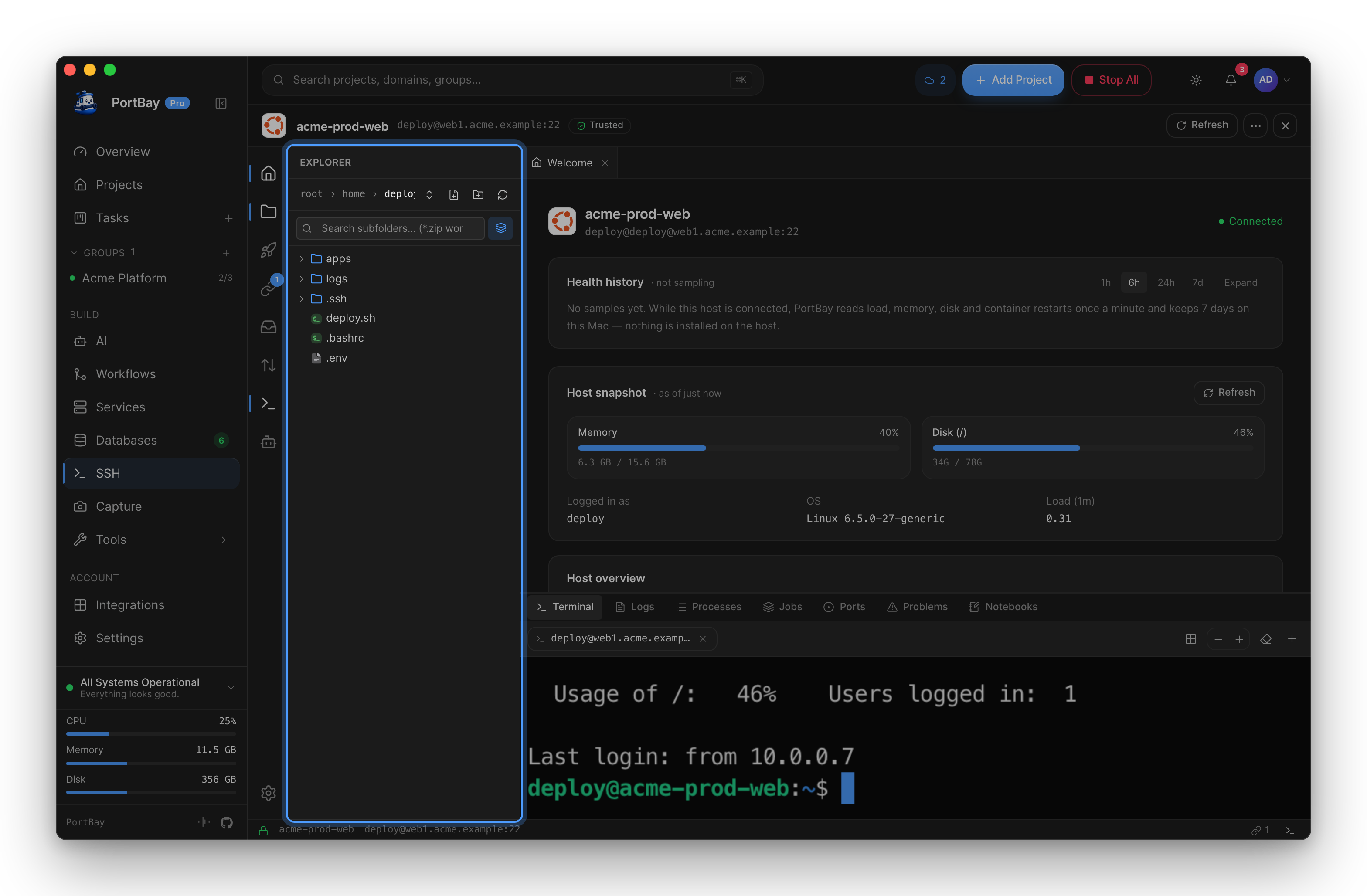
The workspace's SFTP browser has an inline editor for quick changes — open a remote file, edit it, and save with ⌘S over SFTP. For heavier or repeatable work, PortBay does not try to reimplement full remote-development tooling; it generates the exact commands for the tools that already understand every SSH edge case:
| Task | Recommended handoff |
|---|---|
| Browse/edit remote files | For direct profiles with a non-default port, key, jump host, or keep-alive, copy PortBay's SSH config host block first; for enterprise ProxyCommand products, use the provider-generated Host alias directly. Then copy the VS Code or Cursor Remote-SSH command. |
| Upload changed files | Copy the generated rsync -az --progress -e "ssh ..." command. rsync is repeatable and transfers changed files efficiently. |
| One-off upload fallback | Copy the generated scp -r command when rsync is unavailable on the local machine. |
| Git-based deploy | Copy the remote git pull --ff-only command when the server checks out the app from Git. This updates the remote checkout without copying uncommitted local files. |
Do not mix strategies blindly. Use rsync for direct file deploys, or Git on the server for repository deploys. If both are used against the same directory, keep clear ownership rules so generated files, user uploads, and uncommitted changes are not overwritten.
ML Cluster Notes
For Slurm-style clusters, save the login node or bastion in the SSH host / ProxyJump fields and put the current compute node in Remote host. When a new job lands on a different node, use Edit / re-point, change only the remote host, and save the profile.
This keeps the tunnel lifecycle separate from the job lifecycle: the job can keep running on the cluster while PortBay restarts or re-points the laptop-side tunnel.
What the SSH workspace does not do
The workspace is not a VPN replacement, cloud GPU provisioning, or Slurm job submission. It gives you an interactive terminal and an inline SFTP editor for quick work, but for heavy remote development it hands off to the right tool rather than replacing it — PortBay generates the Remote-SSH, rsync, scp, and remote Git commands instead of reimplementing them.
References
- AWS EC2: Connect to your Linux instance using SSH
- Google Compute Engine: Connect to Linux VMs
- Azure Linux VMs: Connect to a Linux VM
- DigitalOcean: Connect to Droplets with SSH
- cPanel: SSH Access
- Plesk: Enabling SSH Access for Website Users
- VS Code: Remote Development using SSH
- Teleport: Using Teleport with OpenSSH
- HashiCorp Boundary: SSH ProxyCommand
- Cloudflare One: SSH with client-side cloudflared
- Cloudflare One: SSH with Access for Infrastructure
- AWS Systems Manager: SSH connections through Session Manager