
Tray Mode (Menu Bar)
PortBay places a persistent icon in the macOS menu bar. It provides quick access to project controls without switching focus to the main window.
macOS only
The tray icon and popover are macOS-specific. The feature is not available on Linux or Windows builds.
The Menu Bar Icon
The icon color reflects aggregate project health and updates each status tick (approximately every 1.5 s):
| Color | Meaning |
|---|---|
| Gray | No projects registered, all stopped, or the process-compose daemon is unreachable |
| Blue | At least one project is starting; none are crashed |
| Green | At least one project is running; none are crashed |
| Red | At least one project is crashed or has a port conflict |
The tooltip shows the aggregate label and project count: e.g. PortBay — all healthy (3 projects).
Unhealthy projects (failing their health probe) count toward the green/running state at the tray level, not red. The distinction is visible in the main dashboard.
Opening the Popover
Left-click the menu bar icon to open a 360×480 px popover anchored below the icon. Click the icon again, or click anywhere outside the popover, to dismiss it. The popover auto-hides when it loses focus.
Double-clicking the icon brings the main PortBay window to the foreground.
Popover Contents
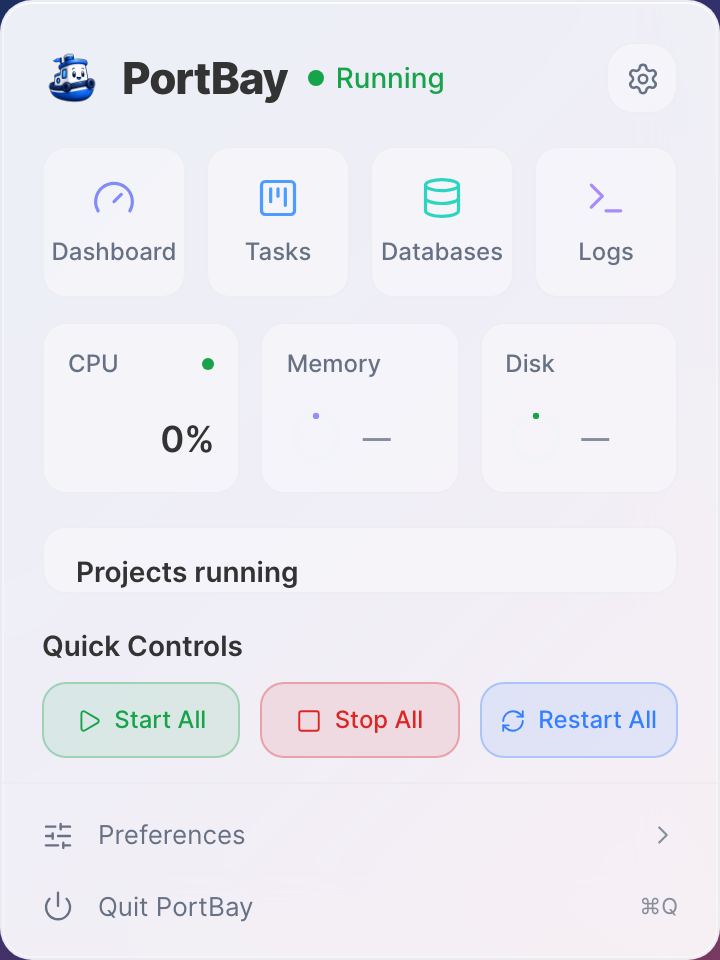
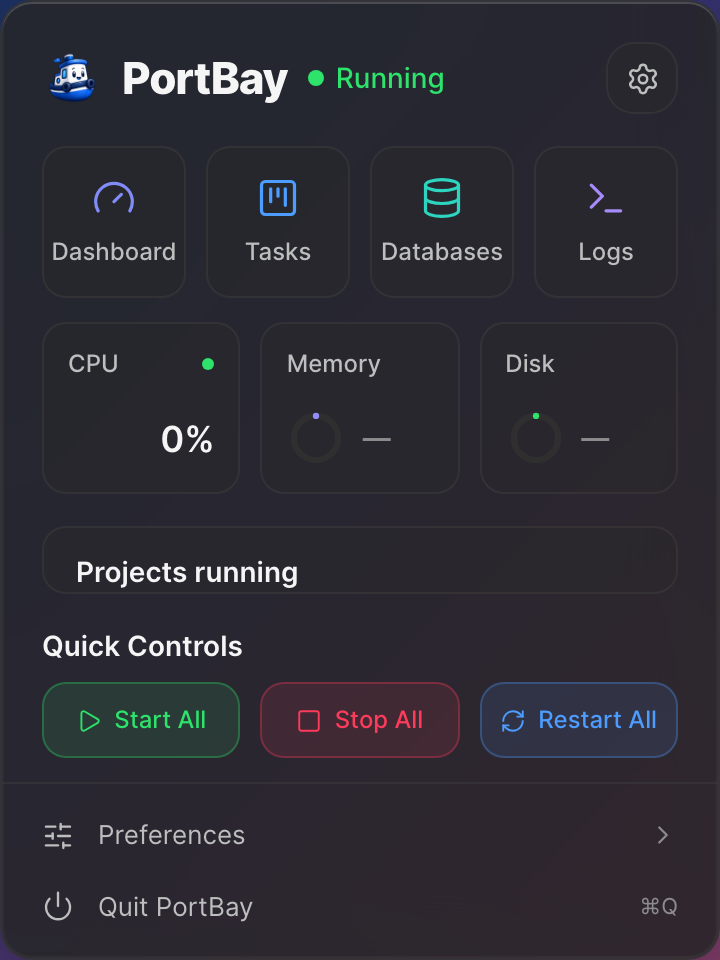
The popover is a full webview panel. It has four sections.
Header
Shows the PortBay wordmark, an aggregate status dot, and a status label (Idle / Starting / All healthy / Needs attention). The gear icon in the top-right opens Settings in the main window.
Action Row
Three buttons act on all projects at once:
- Start all — starts every project that is stopped or crashed
- Stop all — stops every running project
- Restart all — restarts every project that is currently running, starting, or unhealthy
Project List
One row per registered project. Each row shows:
- Status dot (color matches the main dashboard)
- Project name and hostname
- CPU% and memory usage (running projects only)
- A CPU sparkline (last N samples, shown when two or more data points are available)
Hover a row to reveal inline buttons:
- Running projects: Restart, Stop, Open in browser
- Stopped/crashed projects: Start, Open in browser (disabled when stopped)
System Load Footer
Two metrics bars at the bottom:
- CPU — sum of all per-project CPU%, with a 60-second sparkline from global system CPU history
- MEM — sum of per-project RSS in MB; the bar width uses the system's total memory as the denominator
Right-Click Menu
Right-clicking the menu bar icon opens a minimal native menu as an accessibility fallback (not the popover). It contains:
- Show PortBay window
- Preferences…
- Quit PortBay
Hiding the Icon
The menu bar icon can be toggled off in Settings. Disabling it removes the tray entirely; re-enabling it reinstalls the icon with a fresh menu. The main window remains functional either way.
When you close the main window with the tray icon active, PortBay continues running in the menu bar and shows a one-time hint explaining this. To quit fully, use Quit PortBay from the right-click menu or the app menu.