
Databases
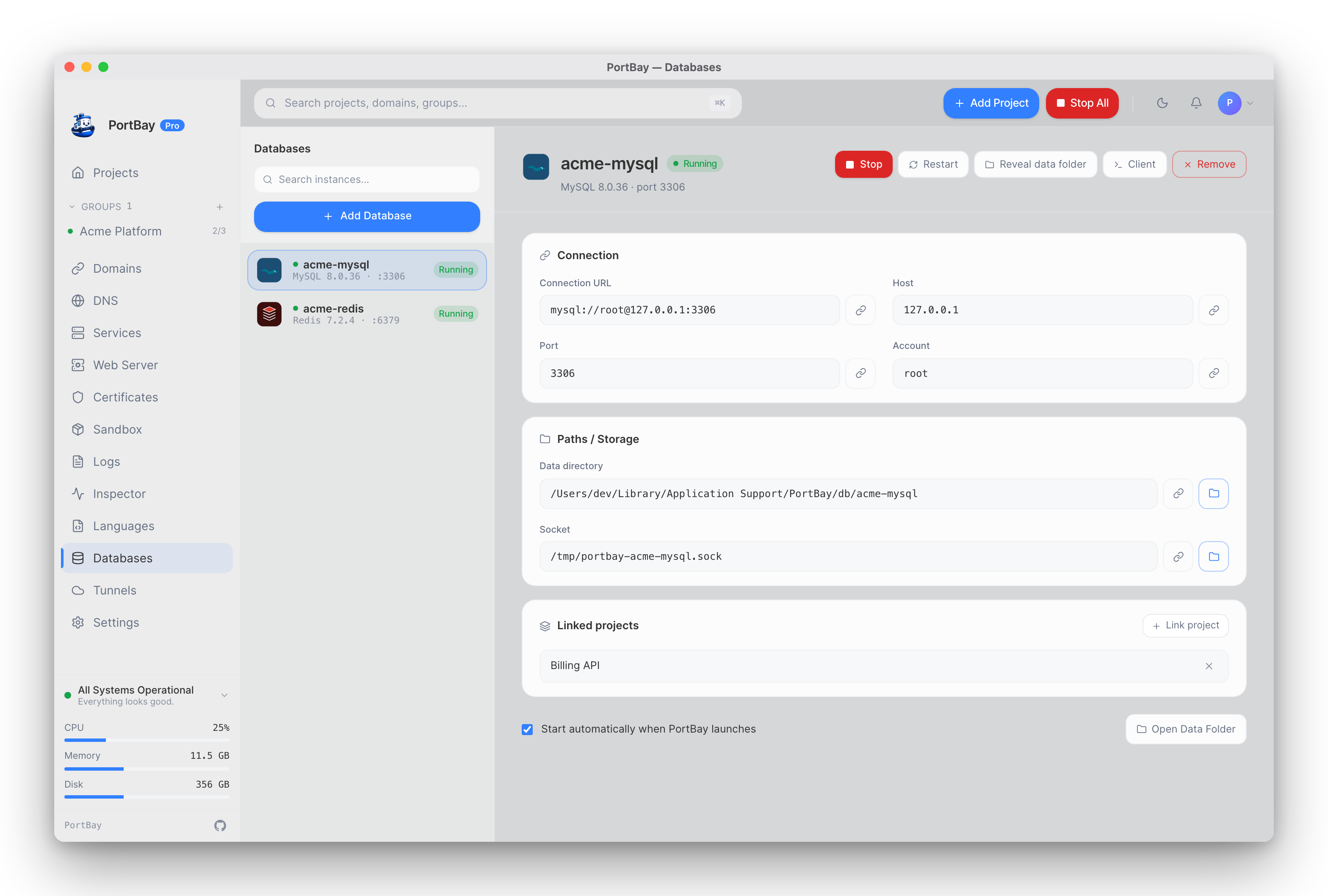
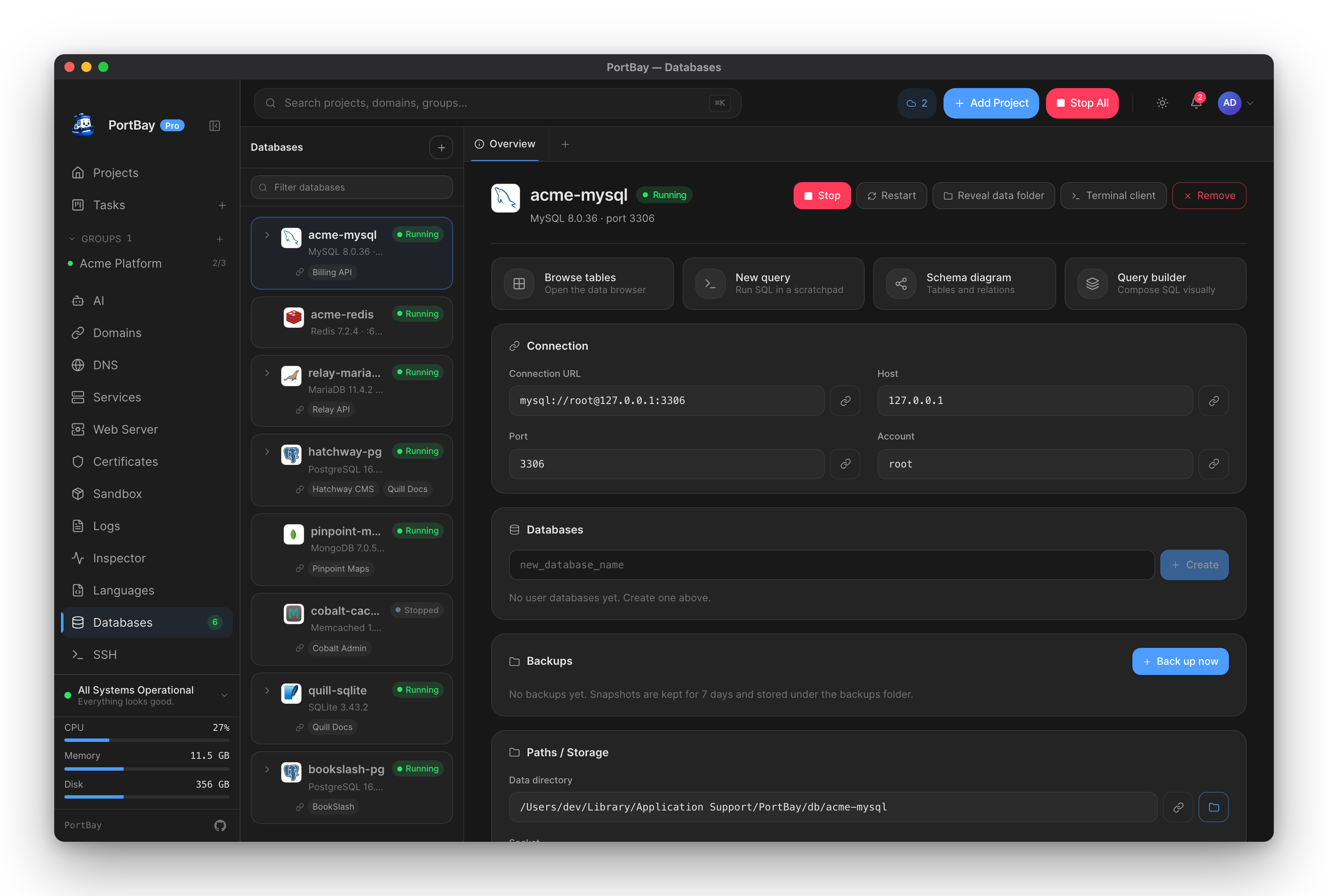
PortBay can provision, configure, and supervise local database instances on your machine. Each instance gets an isolated data directory, an engine-specific config file, and a dedicated port — all managed through Process Compose, the same supervision layer that runs your dev servers. Supported engines are MySQL, MariaDB, PostgreSQL, Redis, MongoDB, and Memcached. Instances can be linked to projects, which injects connection env vars (DATABASE_URL, DB_*) into the linked project's process on every start.
Quickstart
Prerequisites: The engine binary must be installed via Homebrew on macOS or your Linux package manager on Linux. If it isn't, the Add Database wizard shows the install hint.
- Open the Databases section from the sidebar.
- Click Add Database, pick an engine, give the instance a name, and optionally specify a port (PortBay auto-allocates one if left blank).
- Click Create. PortBay initialises the data directory (this runs
mysqld --initialize-insecure,initdb, etc. in the background — expect up to 30–120 seconds for MySQL and PostgreSQL). - The instance appears in the sidebar. Click Start in the detail panel to bring it up.
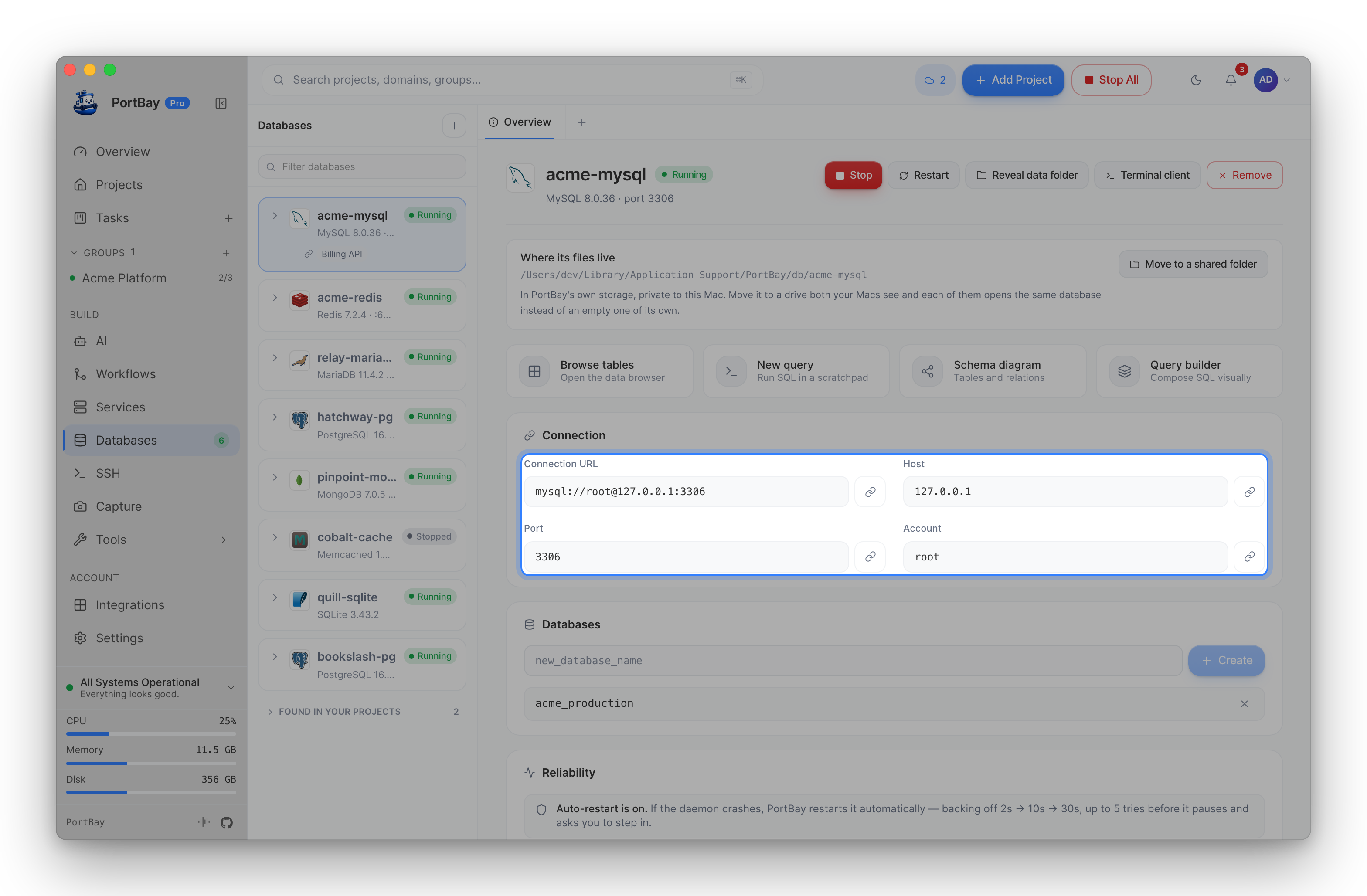
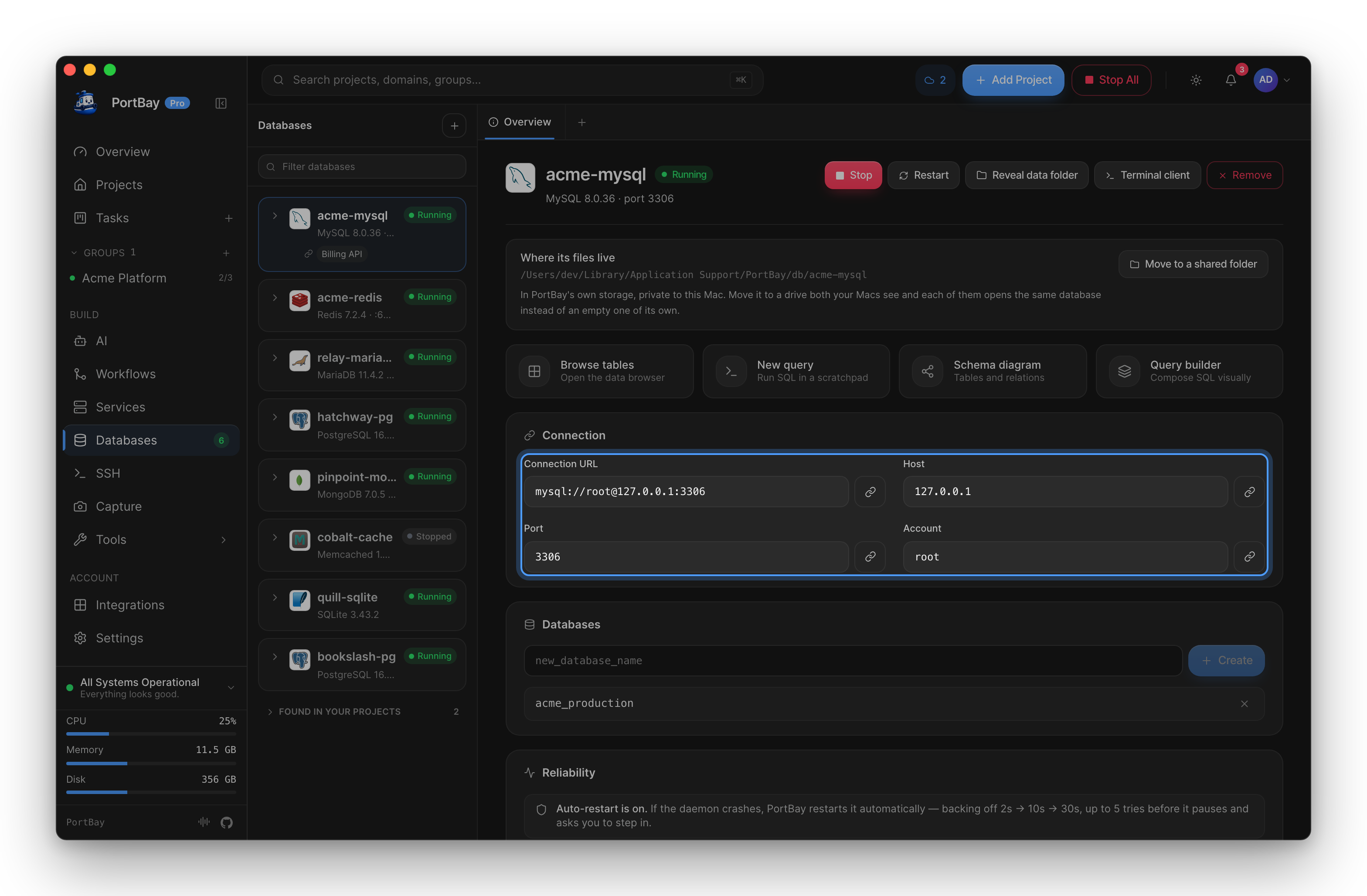
- Copy the Connection URL from the Connection section and paste it into your app or
.env.
mysql://root@127.0.0.1:3306/
postgresql://postgres@127.0.0.1:5432/postgres
redis://127.0.0.1:6379
mongodb://127.0.0.1:27017
memcached://127.0.0.1:11211Port numbers shown above are the defaults; the actual port for your instance is shown in the Connection panel and may differ if the default was already in use.
How-To
Create an instance from an engine
- Click Add Database.
- Select an engine. If it shows as not installed, run the displayed install command for your OS and reopen the wizard.
- Enter a name (slugified into the instance ID) and, optionally, a custom port.
- Enable Start automatically when PortBay launches if you want the daemon to come up on every app start.
- Click Create. The wizard spins while provisioning runs.
Start, stop, and restart
Use the toolbar buttons in the instance detail panel:
- Start — available when the instance is stopped or errored. Triggers a reconciler tick then sends
startto Process Compose. - Stop — available when the instance is running or starting.
- Restart — available only when running; reconciles then sends
restart.
Status updates are live (polled from Process Compose).
Set auto-start
Check or uncheck Start automatically when PortBay launches at the bottom of the detail panel. The setting is persisted immediately and triggers a reconciler tick so the Process Compose YAML reflects the change.
Link an instance to a project
Linking injects connection env vars into the project's process on every PortBay-managed start.
- Select an instance.
- In the Linked projects card, click Link project and choose a project from the picker.
- On the project's next start, PortBay injects:
| Variable | Value |
|---|---|
DATABASE_URL | The instance's connection URL |
DB_CONNECTION | Engine id (mysql, mariadb, postgres, redis, mongo, memcached) |
DB_HOST | 127.0.0.1 |
DB_PORT | Instance port |
DB_USERNAME | Default account (root for MySQL/MariaDB, postgres for PostgreSQL; empty for Redis, MongoDB, Memcached) |
DB_PASSWORD | Empty string |
The per-project env block always overrides injected vars, so you can still override individual values in the project settings without unlinking.
To unlink, click the × next to the project name in the Linked projects card.
Open in a DB client
Click Client in the toolbar. PortBay resolves the engine's CLI binary from the managed install or system PATH and opens it in your desktop terminal, pre-configured for the instance's port:
| Engine | Command format |
|---|---|
| MySQL / MariaDB | mysql -u root -h 127.0.0.1 -P <port> |
| PostgreSQL | psql -U postgres -h 127.0.0.1 -p <port> postgres |
| MongoDB | mongosh mongodb://127.0.0.1:<port> |
| Redis | redis-cli -h 127.0.0.1 -p <port> |
| Memcached | nc 127.0.0.1 <port> |
The button is disabled when no client binary is found for the engine (clientAvailable: false).
Reveal the data folder
Click Reveal data folder in the toolbar or Open Data Folder in the footer. Opens the instance's data directory in Finder. The data directory path is also shown and copyable in the Paths / Storage card.
Remove an instance
Click Remove in the toolbar. A confirmation dialog presents two choices:
- Deregister only — stops the daemon, drops the instance from the registry and from any linked projects, leaves the data directory on disk. You can re-add the instance later and it will reuse the existing data.
- Delete data + deregister — does the above and also deletes the instance's data directory. Irreversible.
If the binary is no longer present when you try to start (binaryAvailable: false), an error note appears under the instance name. Reinstall the engine with Homebrew or your Linux package manager to restore normal operation.
ProjectDbConnection vs. DatabaseInstanceView
PortBay surfaces two distinct database concepts:
DatabaseInstanceView | ProjectDbConnection | |
|---|---|---|
| What it is | A PortBay-provisioned, supervised server instance | A DB connection parsed from the project's own dotenv files |
| Managed by | PortBay (lifecycle, port allocation, data dir) | The project itself |
| Where it appears | Databases section | Project detail → DB Connections tab |
| Auth env injection | Yes, via instance linking | No — read-only display |
A project can have both: a DatabaseInstanceView linked to it (PortBay's managed instance) and separate ProjectDbConnection entries read from its own config (e.g. a remote staging DB or a Docker-managed instance). The two do not interfere with each other.
ProjectDbConnection reads .env.local, .env and .env.development, in that order — .env.local first, because that is the file Next.js and Vite load last, so it is the one that wins at runtime. Where two files set the same variable, the first one to set it is used. This is the same file list and the same order the Databases section uses when it offers to adopt a database it found in a project, so both surfaces name the same database.
Beyond the default DB_* block, the DB Connections tab also shows any <PREFIX>_DB_HOST / <PREFIX>_DB_DATABASE set as a separate named connection (a read replica, say), and hostless engines such as SQLite — neither of which is offered for adoption in the Databases section, because there is no server to connect to.
Reference
Supported engines
| Engine | ID | Default port | macOS install | Linux package |
|---|---|---|---|---|
| MySQL | mysql | 3306 | brew install mysql | mysql-server / mysql-client |
| MariaDB | mariadb | 3306 | brew install mariadb | mariadb-server / mariadb-client |
| PostgreSQL | postgres | 5432 | brew install postgresql@16 | postgresql / postgresql-client |
| Redis | redis | 6379 | brew install redis | redis-server / redis-tools |
| MongoDB | mongo | 27017 | brew install mongodb-community | mongodb-org plus mongosh |
| Memcached | memcached | 11211 | brew install memcached | memcached |
MySQL and MariaDB share the same default port (3306). If both are registered, PortBay auto-allocates a different port for whichever is added second.
DatabaseInstanceView fields
| Field | Type | Description |
|---|---|---|
id | string | Slug derived from the instance name. Used as the Process Compose process name (db-<id>). |
name | string | User-facing display name. |
engine | DatabaseEngineId | Engine id string (see table above). |
engineLabel | string | Human-readable engine name (e.g. "PostgreSQL"). |
version | string | Version detected from the daemon binary at create time (e.g. "16.2"). |
port | number | Listening port allocated at create time. |
status | InstanceStatus | Current status (see below). |
autoStart | boolean | Whether PortBay starts this instance at launch. |
dataDir | string | Absolute path to the instance's data directory. |
configPath | string | null | Absolute path to the generated config file, or null for engines launched purely with CLI flags. |
socketPath | string | null | Absolute path to the Unix socket, or null for engines that don't use one (PostgreSQL uses a directory, not a single socket file; Memcached has no socket). |
connectionUrl | string | Ready-to-use connection URL for frameworks. |
account | string | Default superuser account (root, postgres, or empty). |
linkedProjects | string[] | IDs of projects this instance is linked to. |
binaryAvailable | boolean | False when the daemon binary can no longer be found on the machine. |
provisioned | boolean | True when the data directory has been initialised for this engine. |
Instance statuses
| Status | Meaning |
|---|---|
running | Daemon is up and Process Compose reports it as running/ready. |
stopped | Process is not present or not running in Process Compose. |
starting | Process Compose reports launching/starting state. |
errored | Process Compose reports an error or failed state. |
Storage layout
All database data lives inside PortBay's app-data directory:
~/Library/Application Support/PortBay/databases/
  <instance-id>/
    data/          ← engine data directory
    my.cnf         ← MySQL / MariaDB config
    redis.conf     ← Redis config
    mongod.conf    ← MongoDB config (YAML)
    mysql.sock     ← MySQL / MariaDB unix socket
    redis.sock     ← Redis unix socket
mongod.sock ← MongoDB unix socketPostgreSQL keeps its config inside the data directory (data/postgresql.conf, generated by initdb). PostgreSQL sockets live in <instance-id>/ rather than at a named socket file path.
Memcached has no config file and no socket; it is launched entirely with CLI flags.
Config file paths by engine
| Engine | Config location |
|---|---|
| MySQL | <instance-id>/my.cnf |
| MariaDB | <instance-id>/my.cnf |
| PostgreSQL | <instance-id>/data/postgresql.conf |
| Redis | <instance-id>/redis.conf |
| MongoDB | <instance-id>/mongod.conf |
| Memcached | None |